Pay a building cost
When the building pays for something everyone shares, like a repair or the stairs light, add it to Building costs. It is split between the people who share it when you close Building costs.
Where are you doing it?
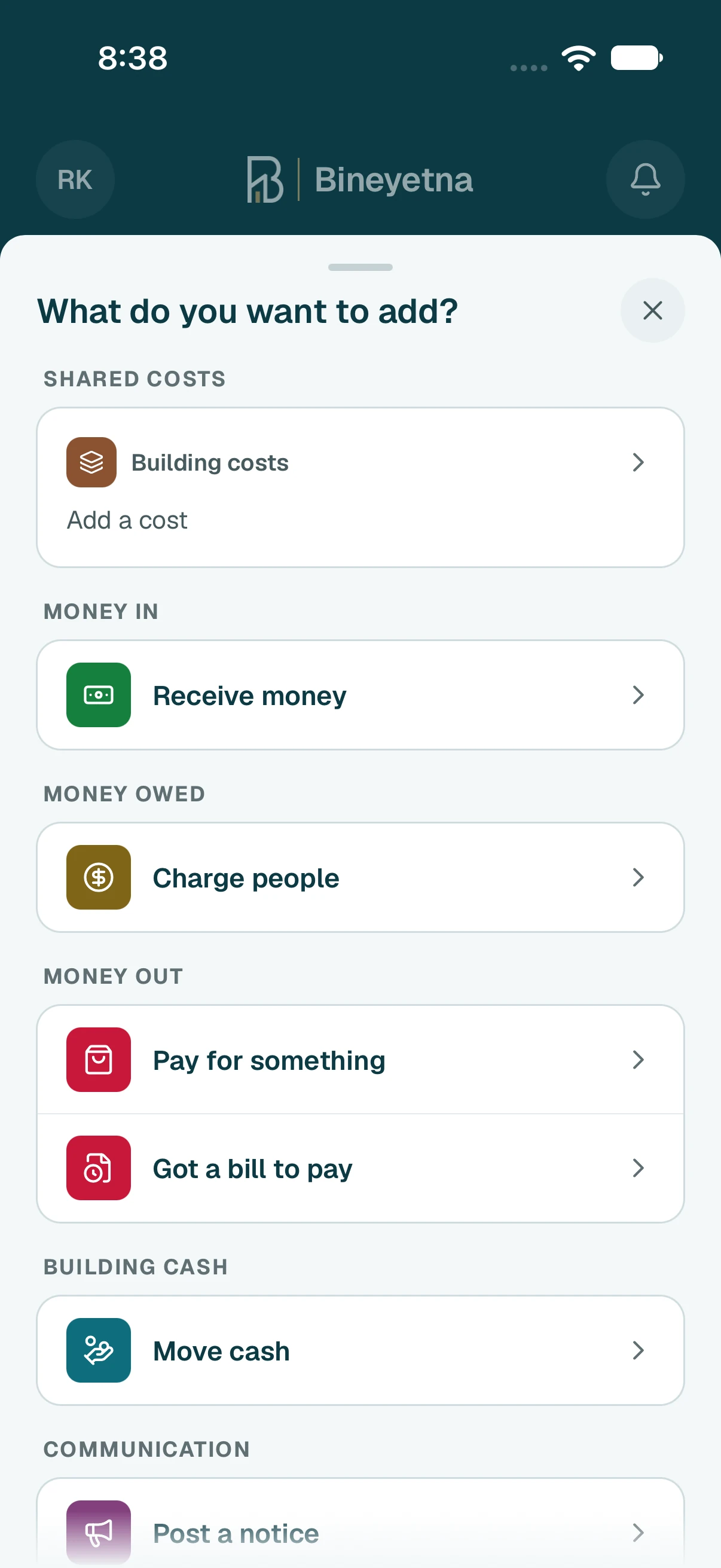
- Tap the round + button at the bottom of the screen.
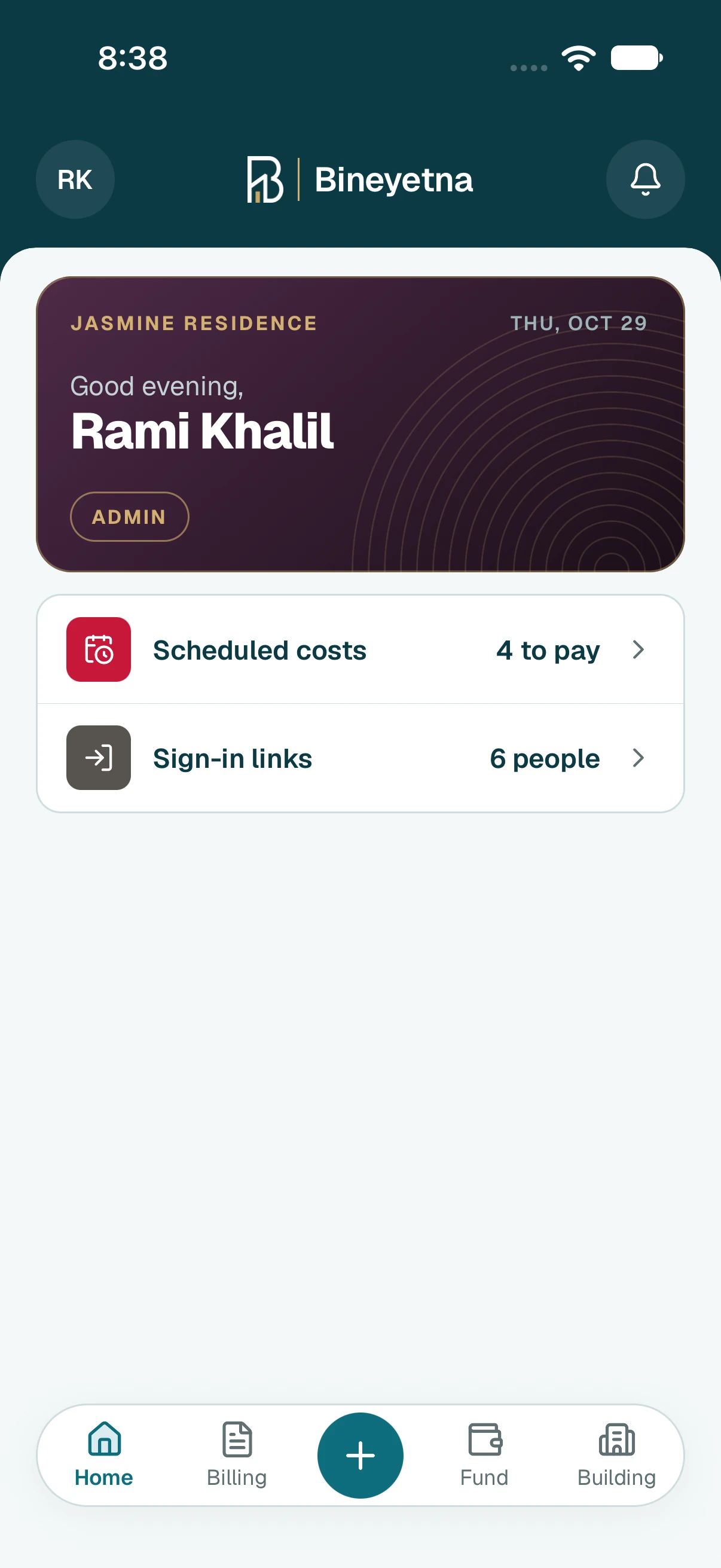
- Under Shared costs, tap Building costs · add a cost.
- At the top, check that it says Charged to Building costs, split between the people who share it.
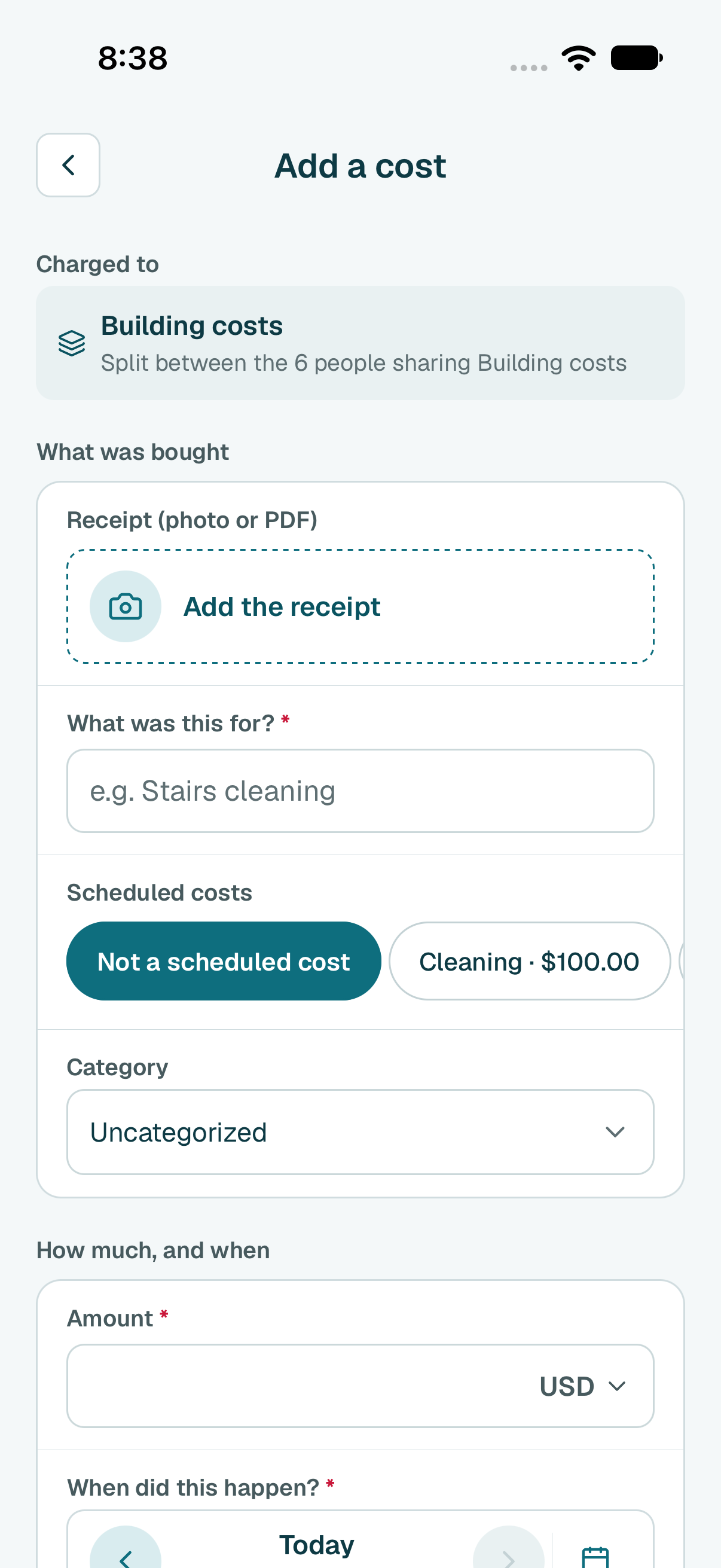
- To keep the receipt, tap Add the receipt, then Take photo, Choose photo or Choose a PDF file. The app may fill in the details from it.
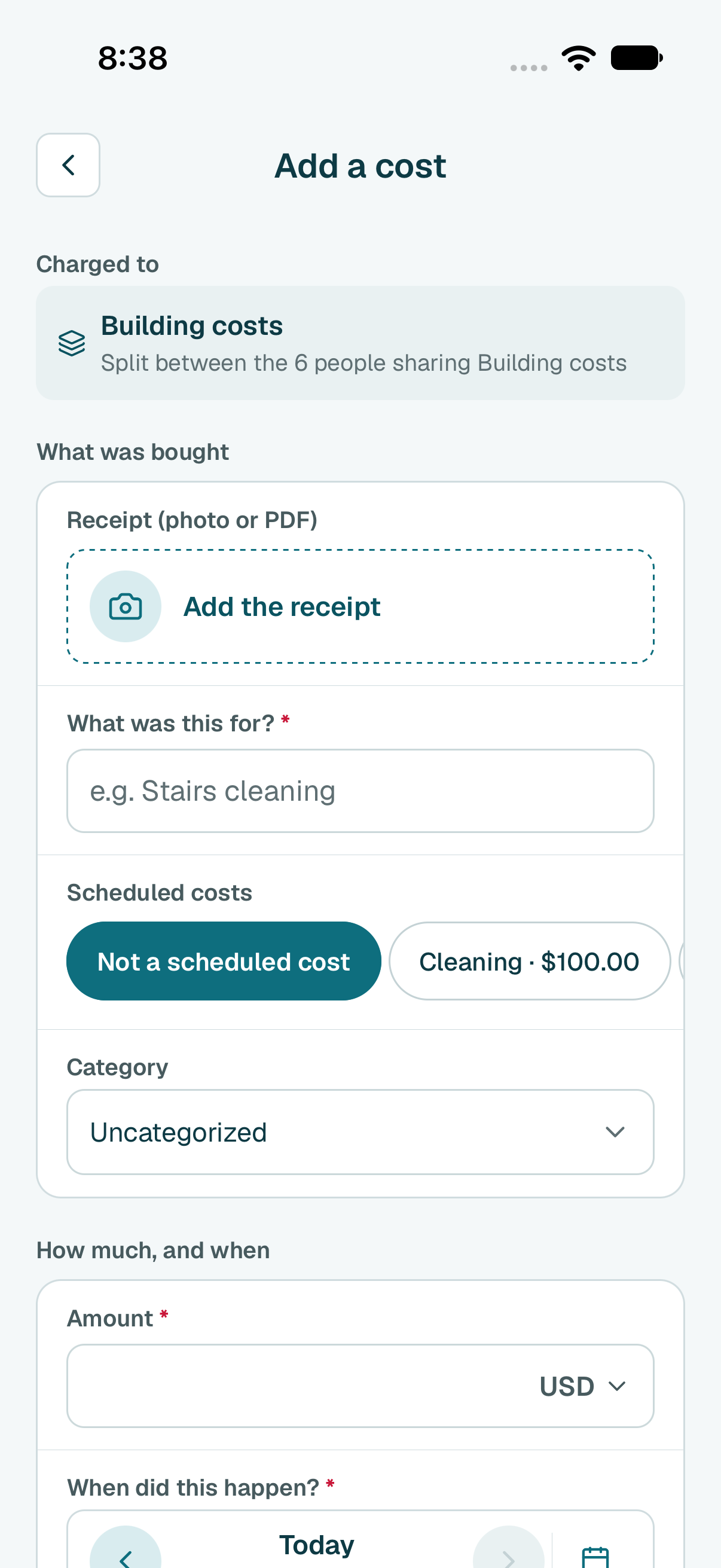
Type what it was for.
Tip
Is it one of your scheduled costs? Tap it under Scheduled costs, so it is marked as paid.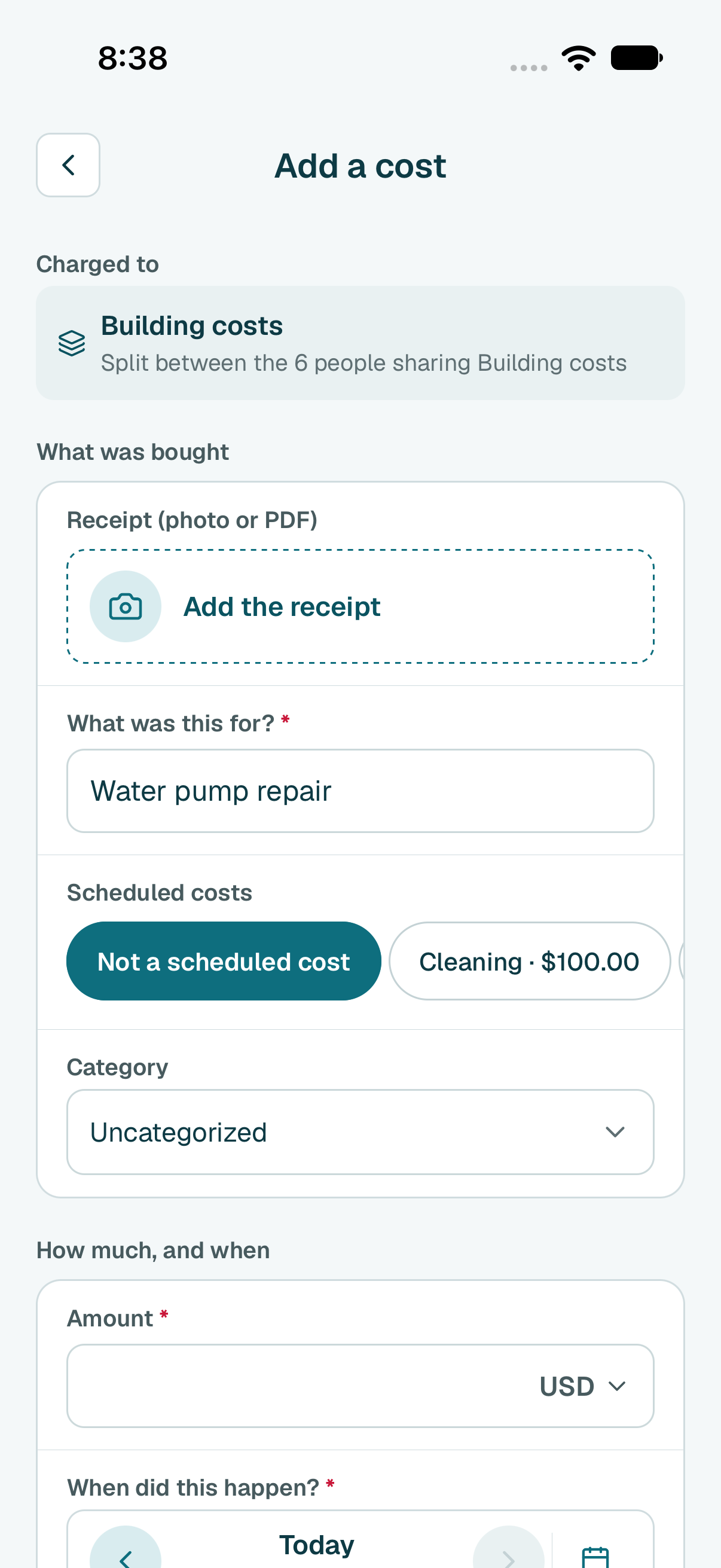
- Type how much it cost. The date is already today; change it if it was paid another day.
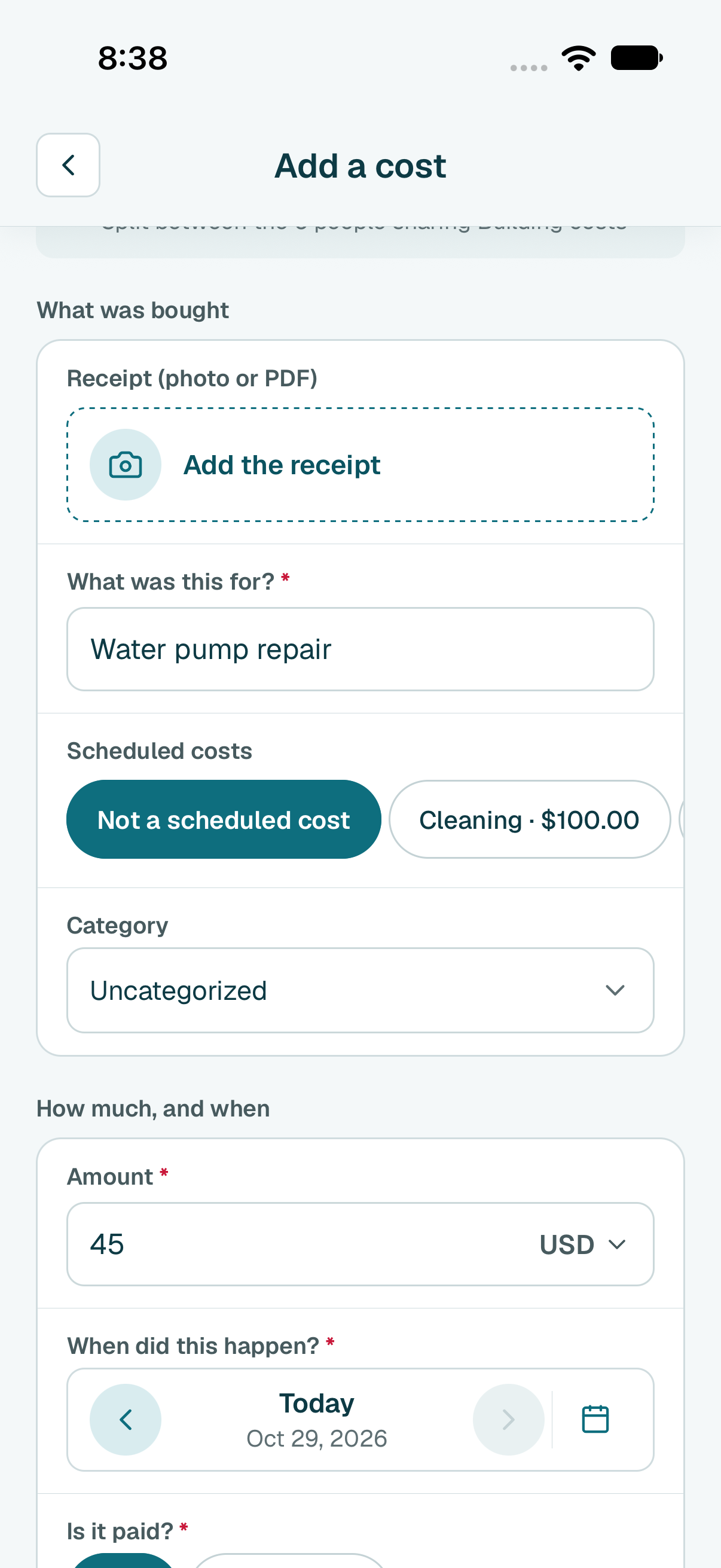
Under Is it paid?, leave Paid. Then tap Add expense.
Tip
The building still owes the money? Tap Not paid yet. It still counts in the split.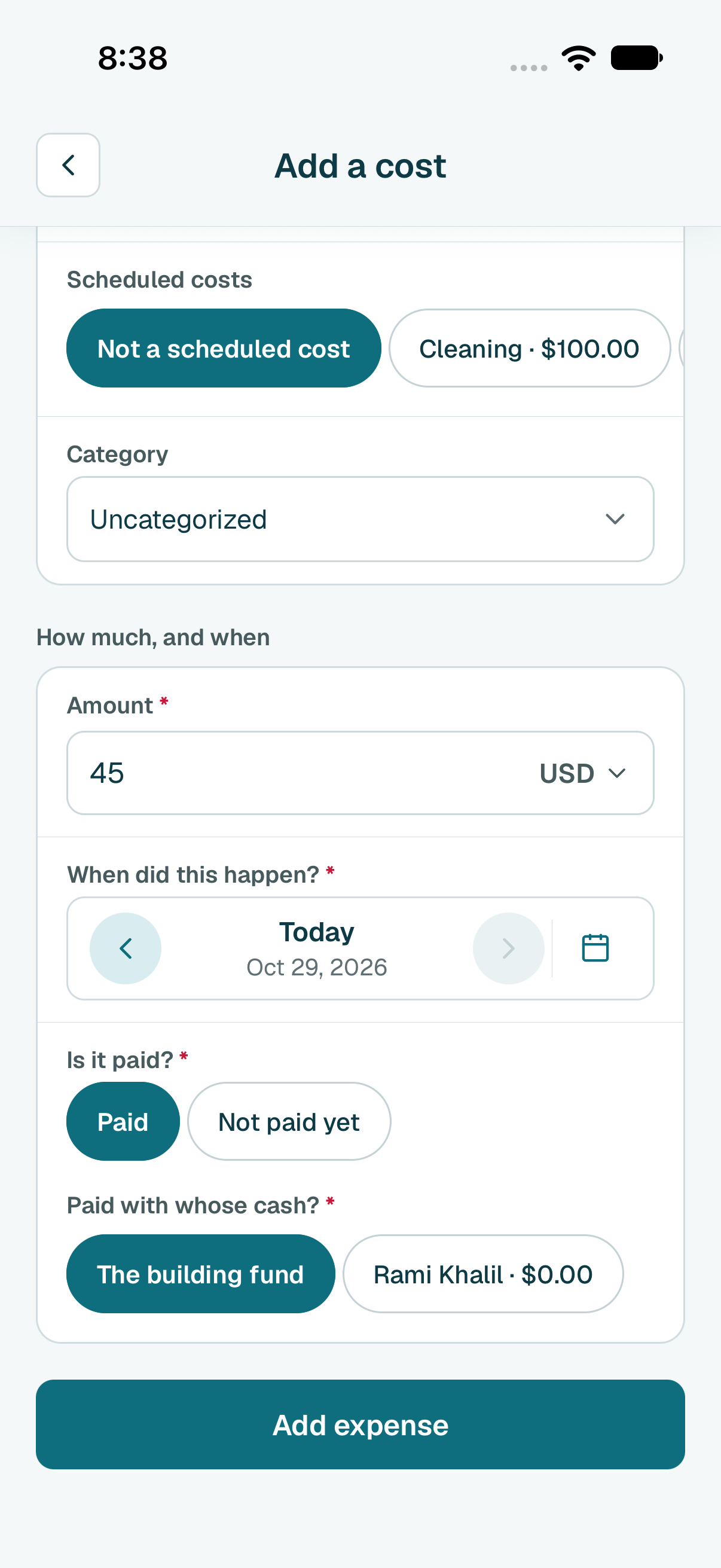
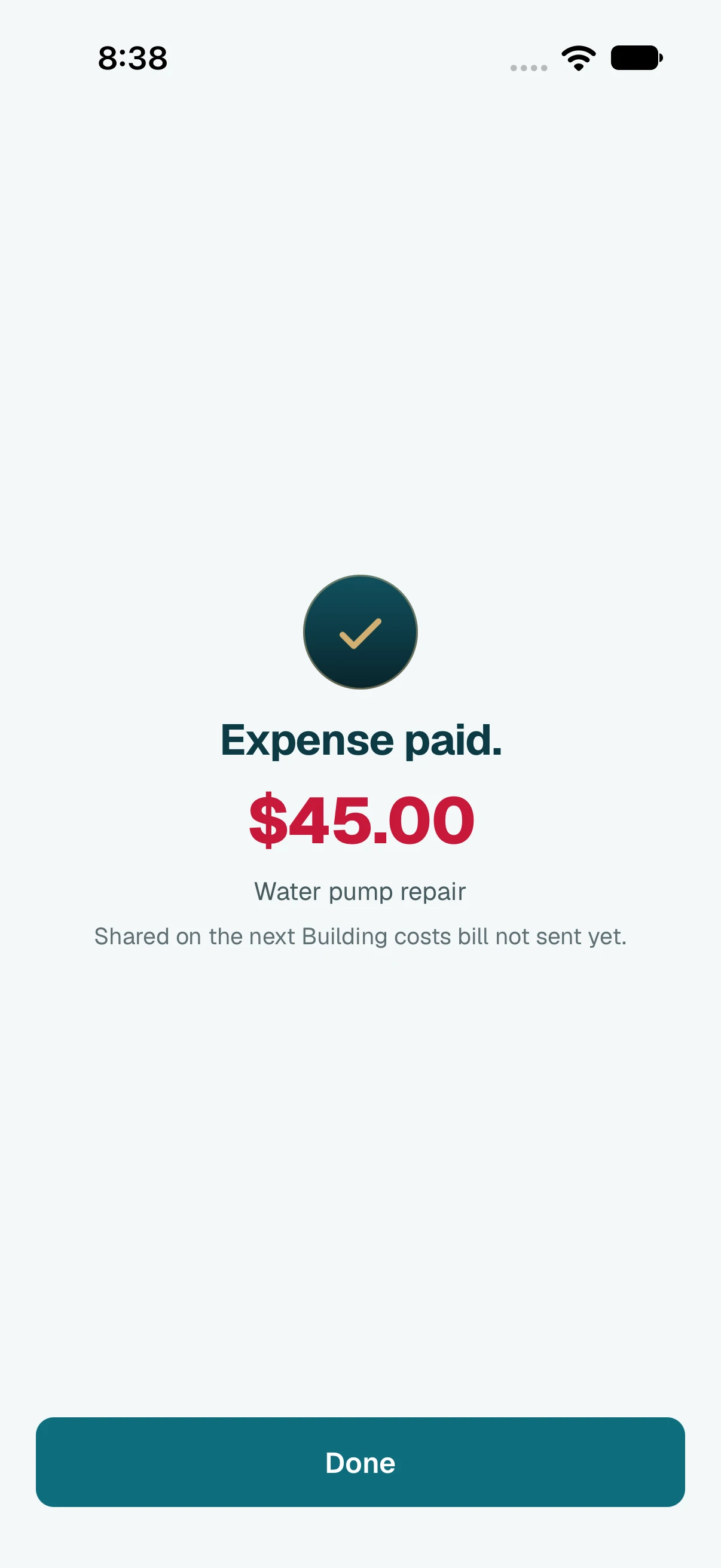
- Done. Tap Done.
Tip
Add every cost before you tap Close and split, or it is split next time. Already in Pay for something? Under Charge it to, make sure Building costs is picked.
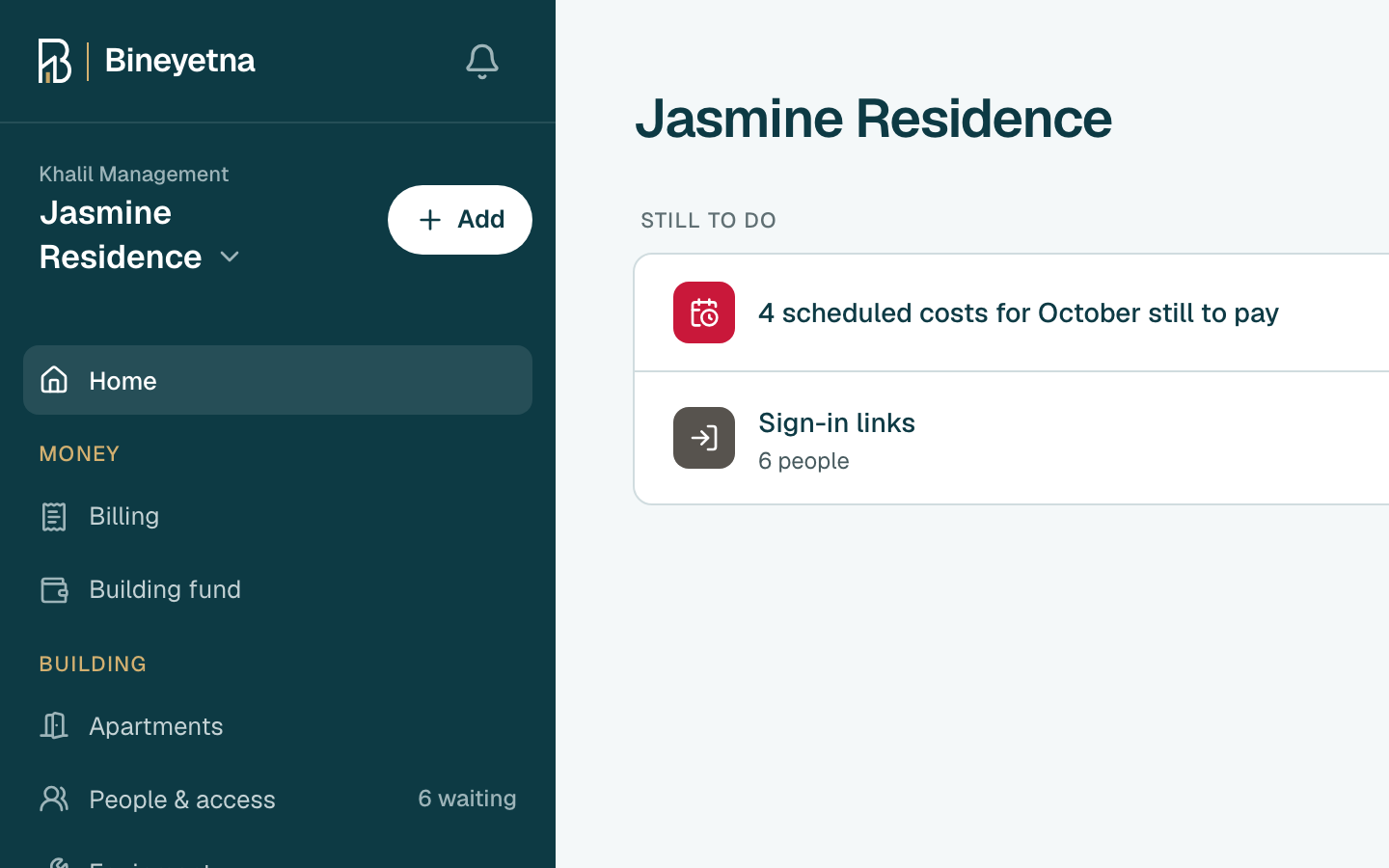
- Click Add, next to your building's name in the side menu.
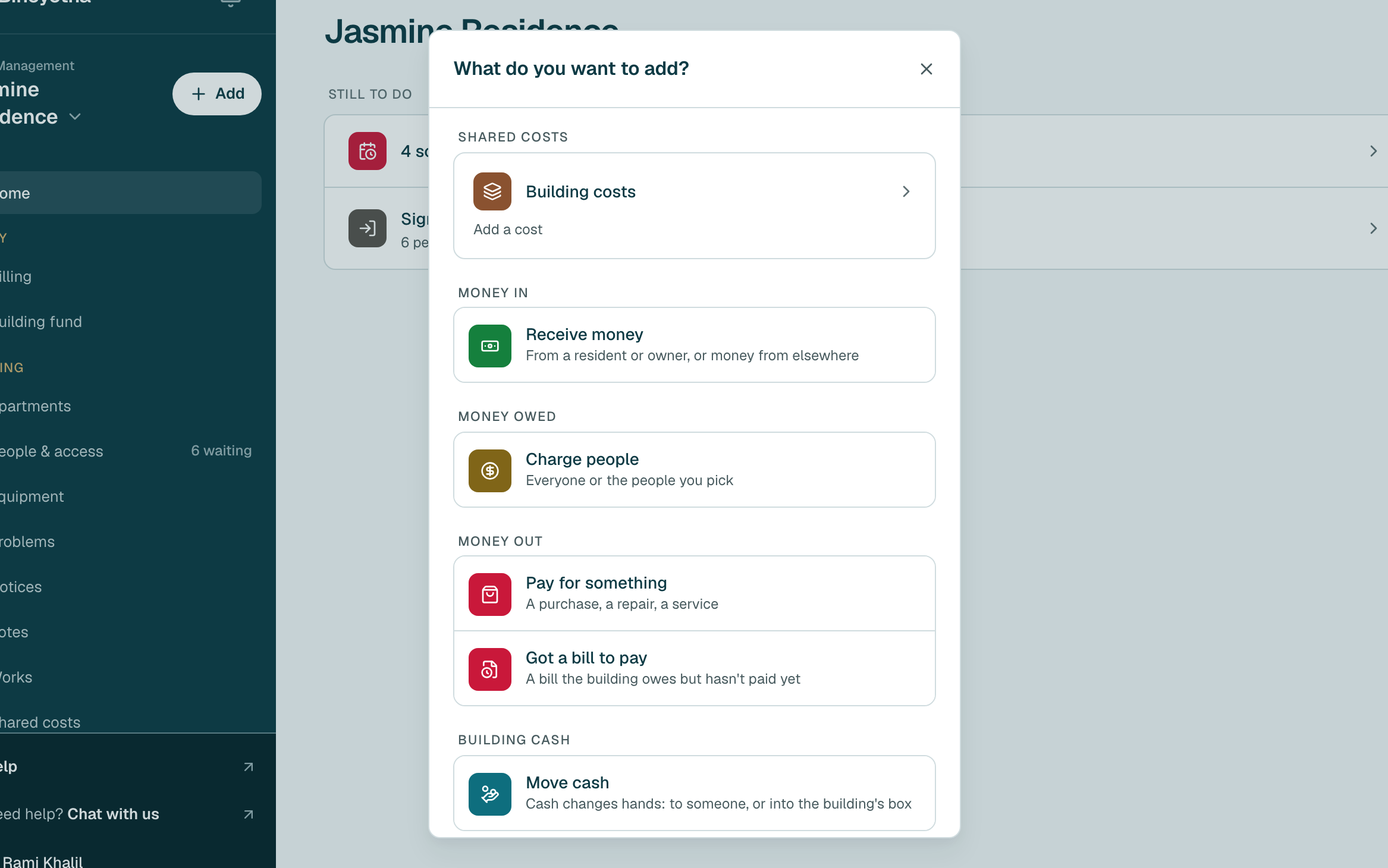
- Under Shared costs, click Building costs · add a cost.
- At the top, check that it says Charged to Building costs, split between the people who share it.
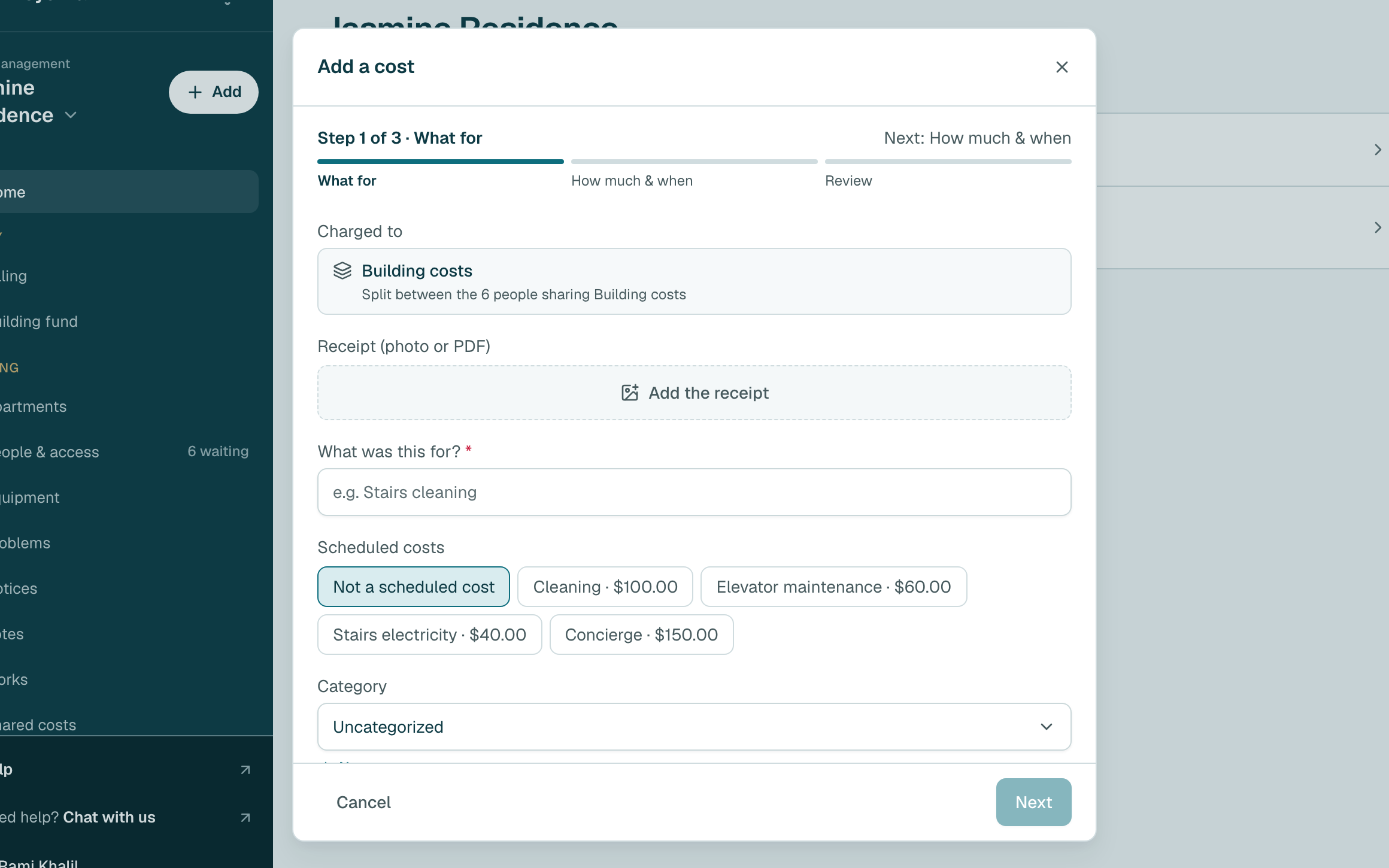
- To keep the receipt, click Add the receipt and choose the photo or PDF. The website may fill in the details from it.
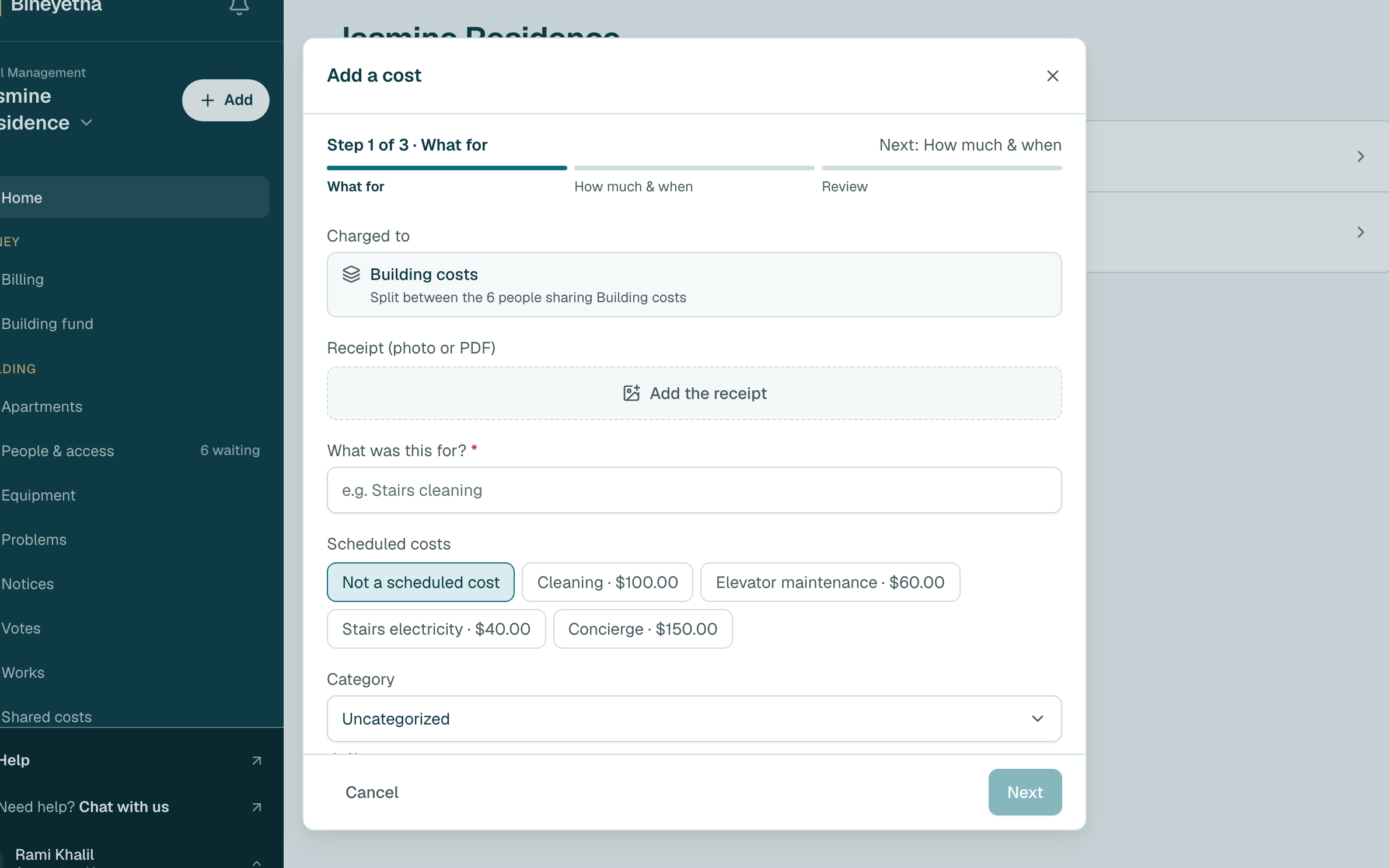
Type what it was for, then click Next.
Tip
Is it one of your scheduled costs? Click it under Scheduled costs, so it is marked as paid.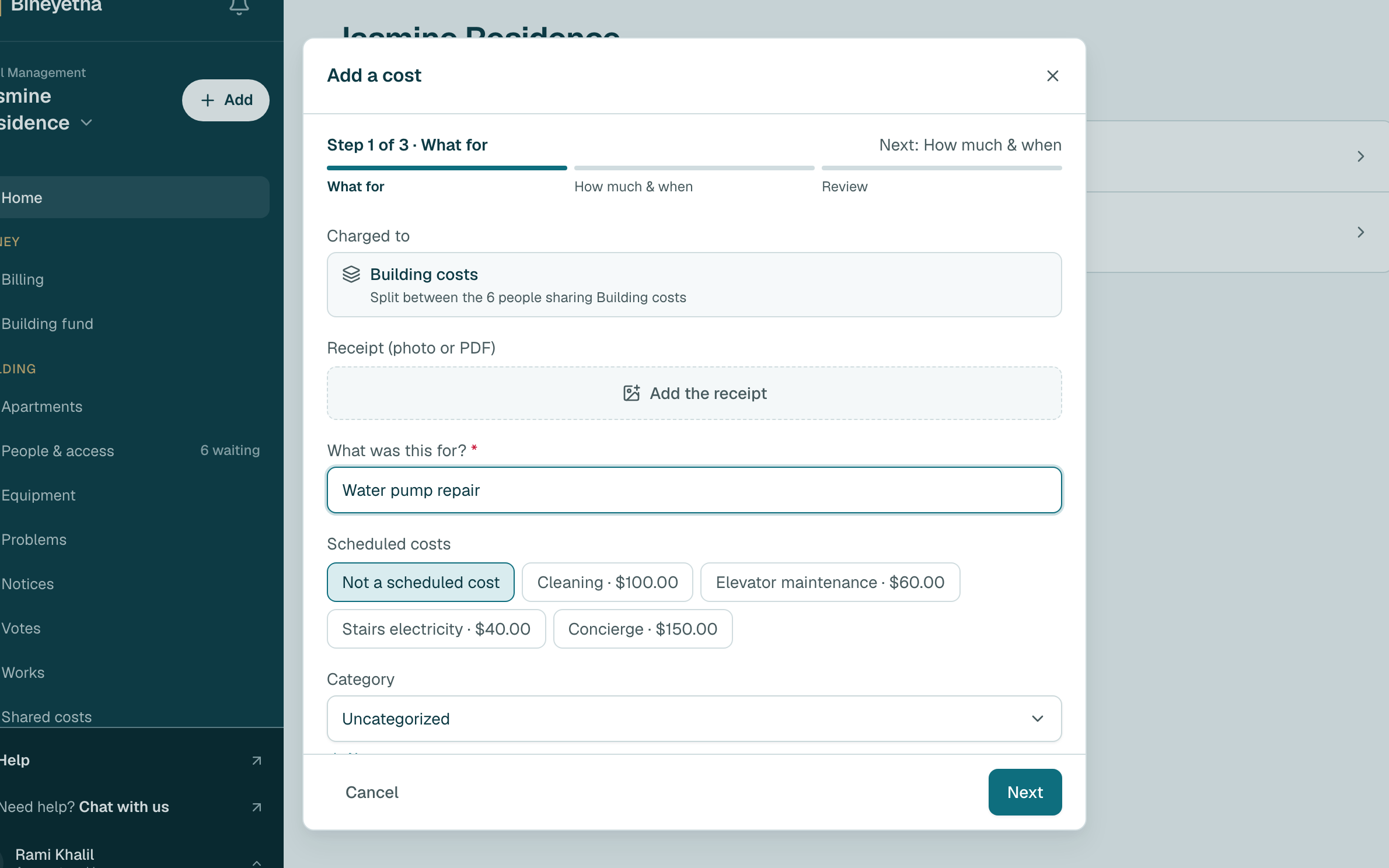
Type how much it cost and check the date. Under Is it paid?, leave Paid. Then click Next.
Tip
The building still owes the money? Click Not paid yet. It still counts in the split.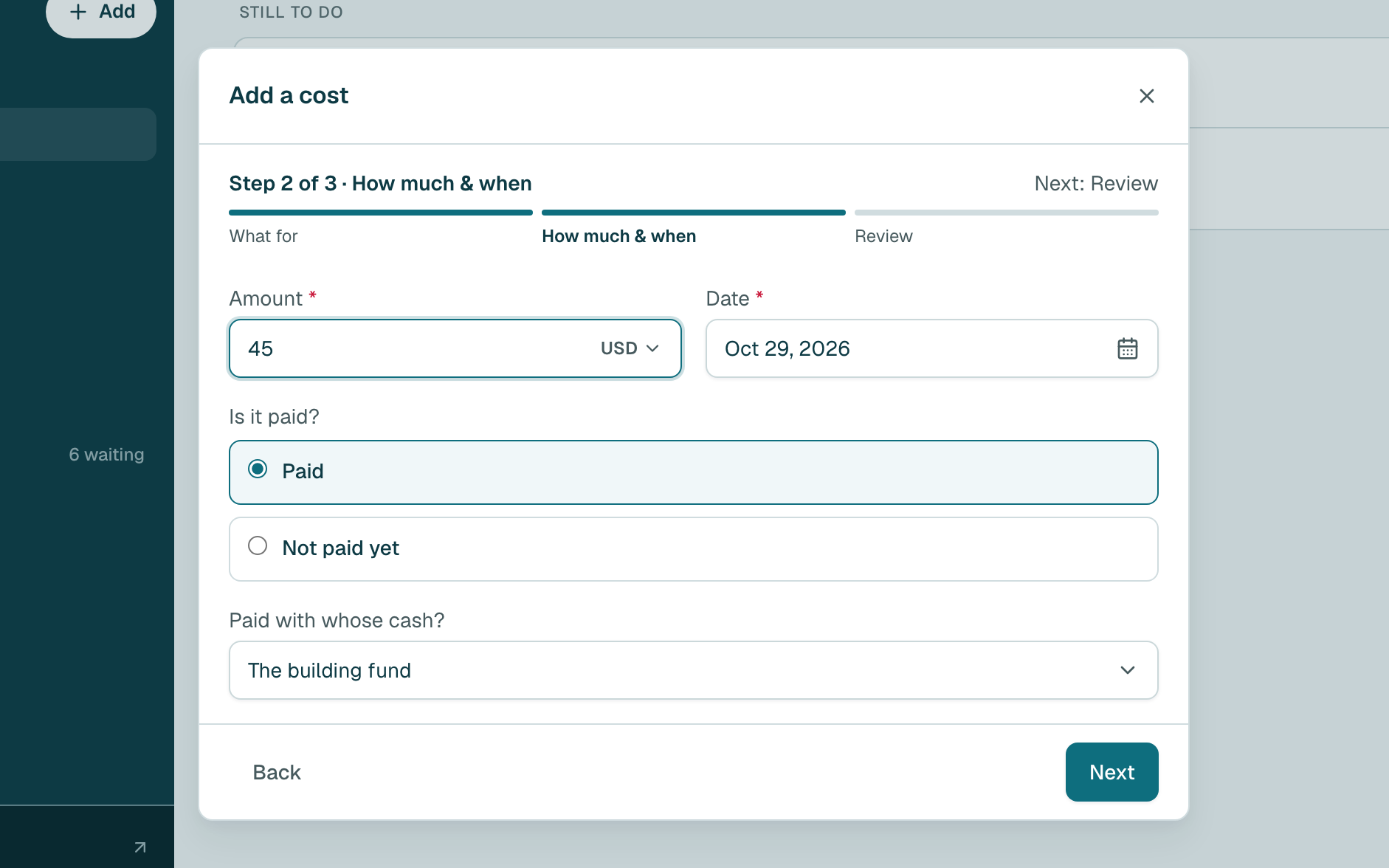
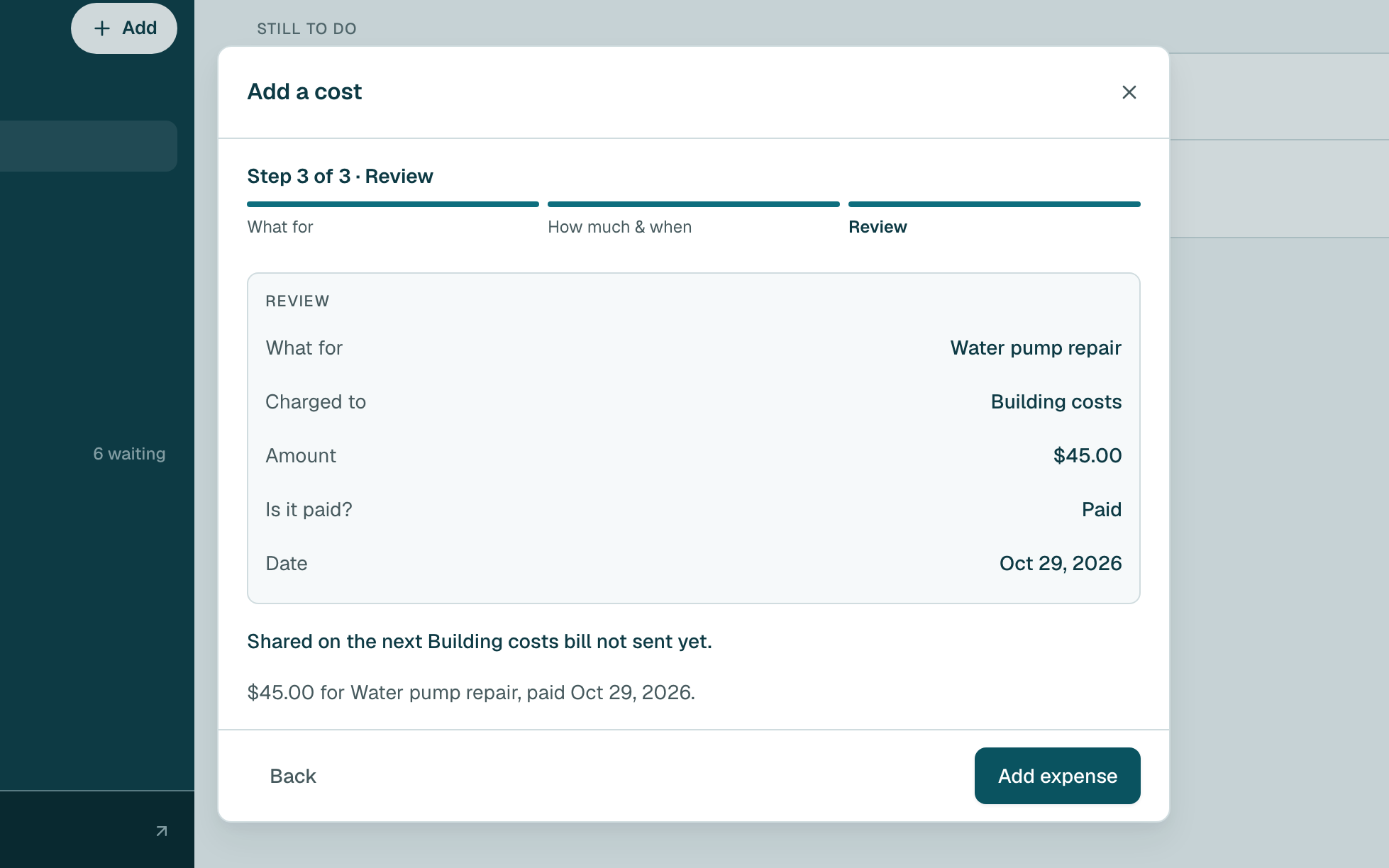
- Check the details, then click Add expense.
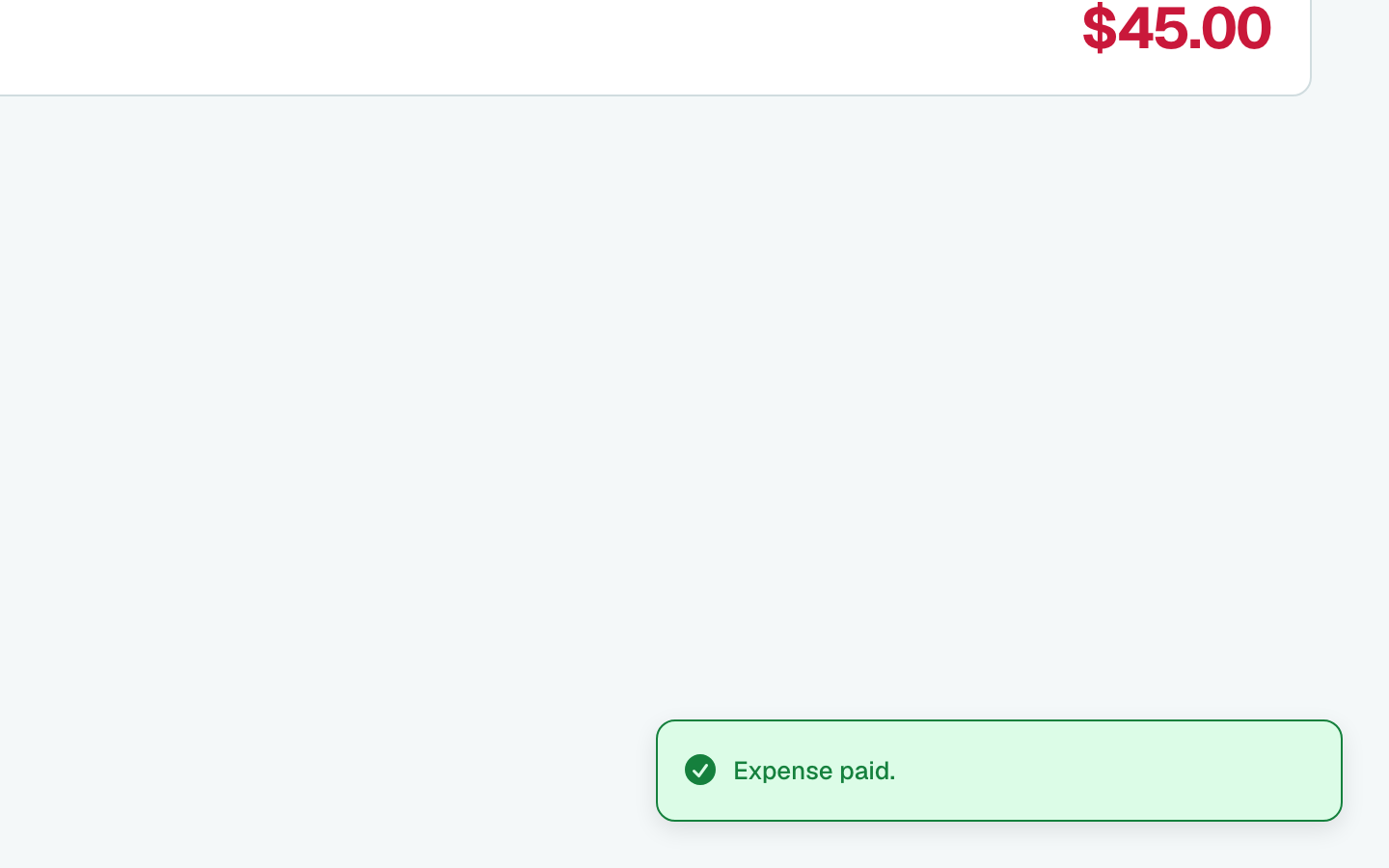
- Done. A message at the bottom of the screen confirms it.
Tip
Add every cost before you click Close and split, or it is split next time. Already in Pay for something? Under Charge it to, make sure Building costs is picked.
Still stuck?
Message us on WhatsApp and we will walk you through it.