Pay for something
When the building pays for something, like a repair, a cleaner or new light bulbs, add it right away. The money comes out of the building's fund and you keep a photo of the receipt.
- Tap the round + button at the bottom of the screen.
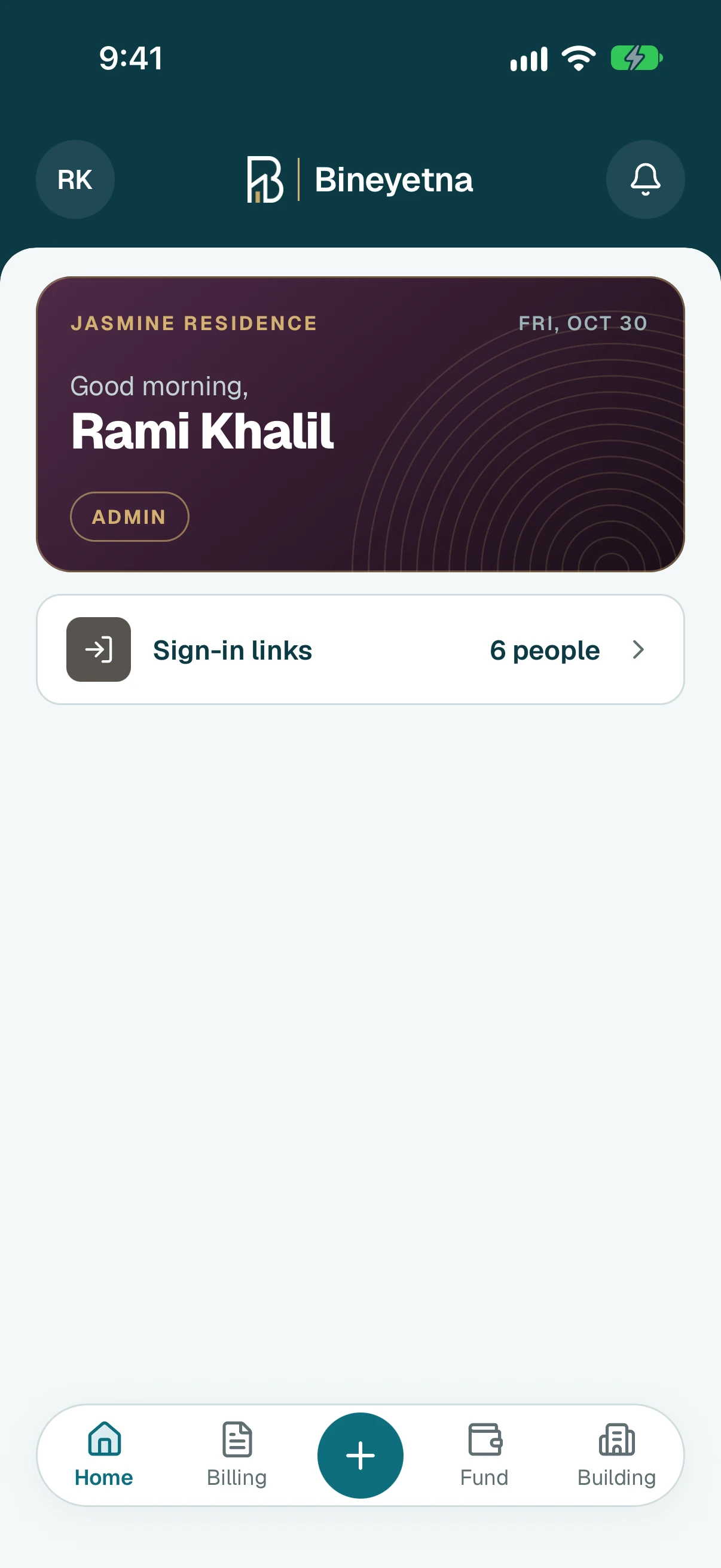
Tap Pay for something.
Tip
For a shared cost, like a water delivery, tap its own row under Shared costs instead.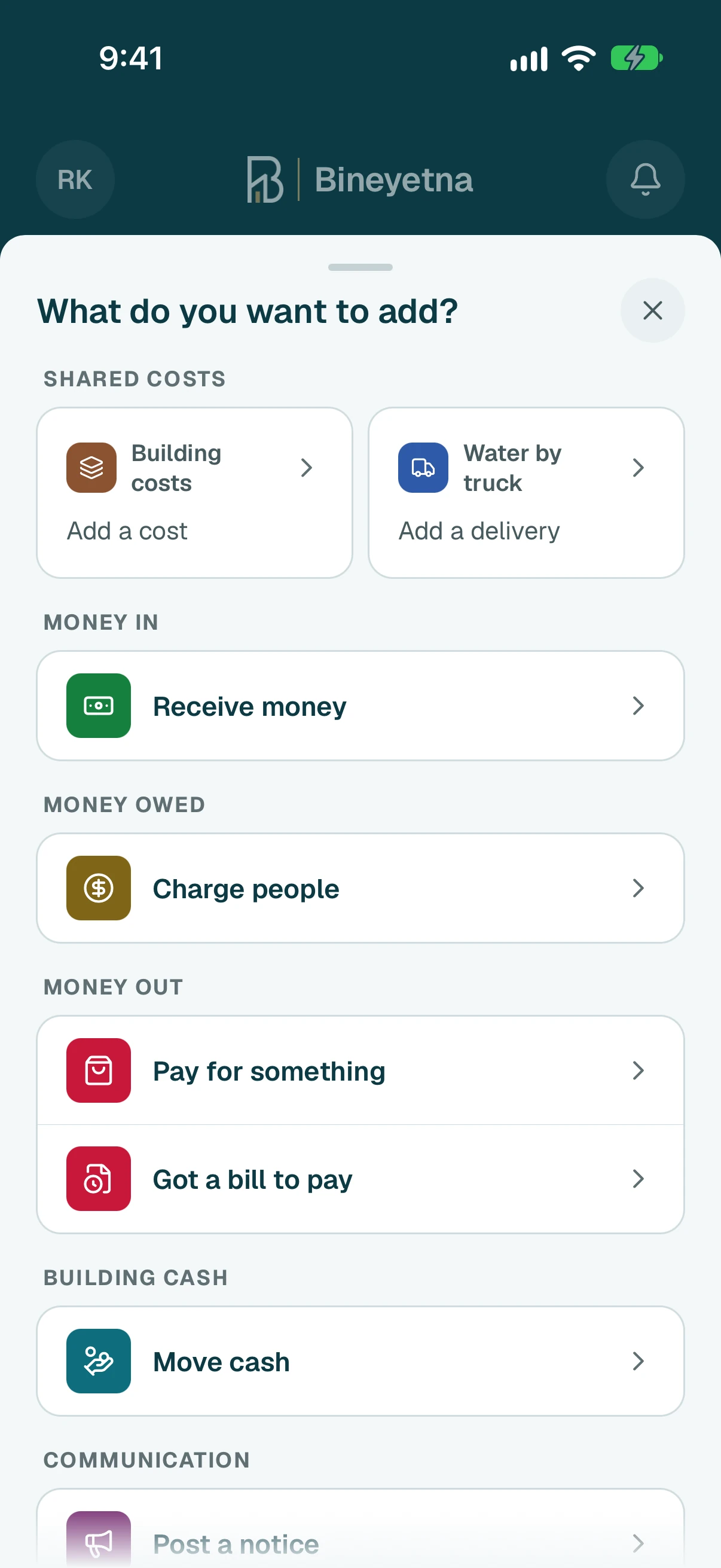
If you see Charge it to, leave it empty when the building's fund pays. Tap a shared cost only if the people sharing it should split this cost, and tap it again to clear it.
Tip
If you pick the generator or water, the form then asks What did you pay for?. For a repair or a purchase, tap A purchase, a repair or a service.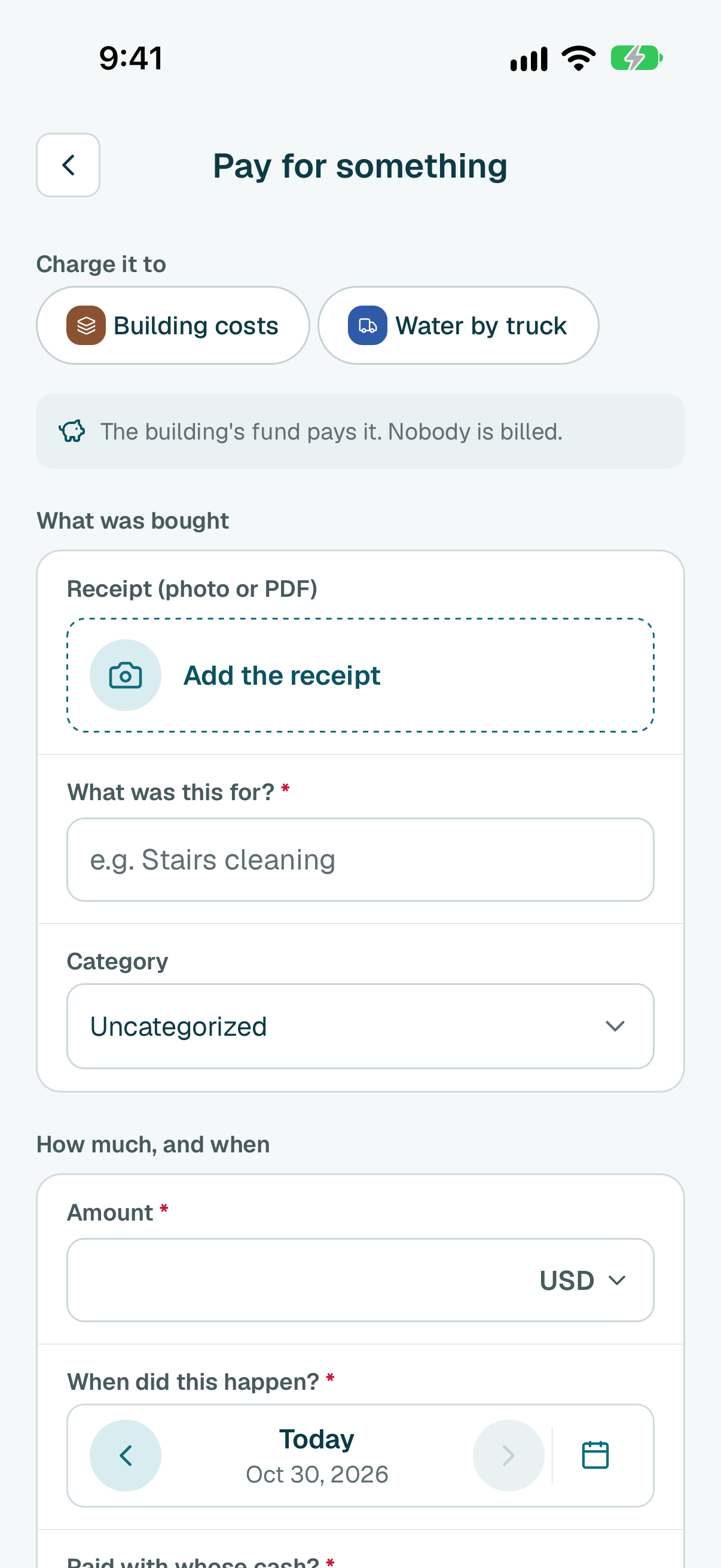
- To keep the receipt, tap Add the receipt, then Take photo, Choose photo or Choose a PDF file. The app may fill in the details from it.
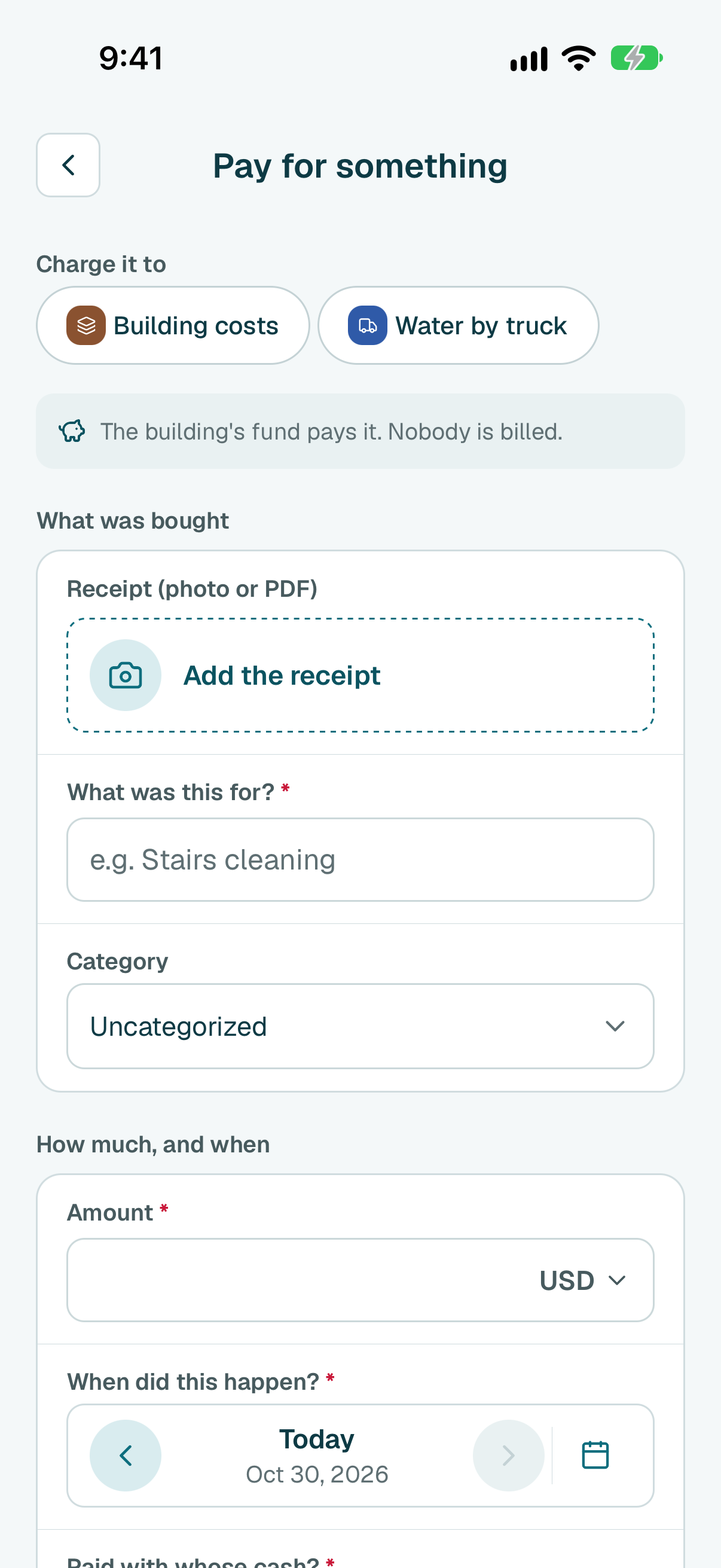
- Type what it was for.
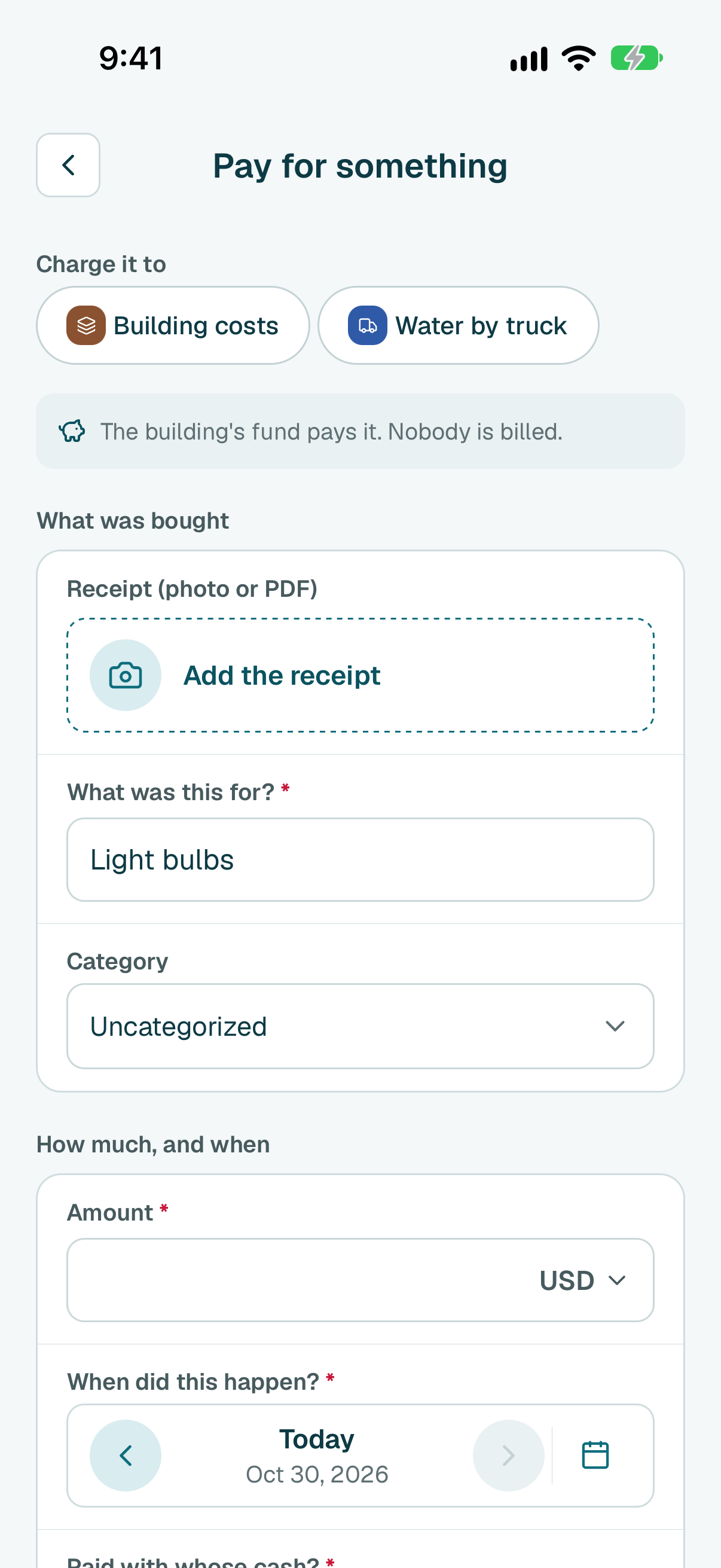
Type how much it cost. The date is already today; change it if it was paid another day.
Tip
If someone paid from cash they hold for the building, find Paid with whose cash? and tap their name. Otherwise leave it on The building fund.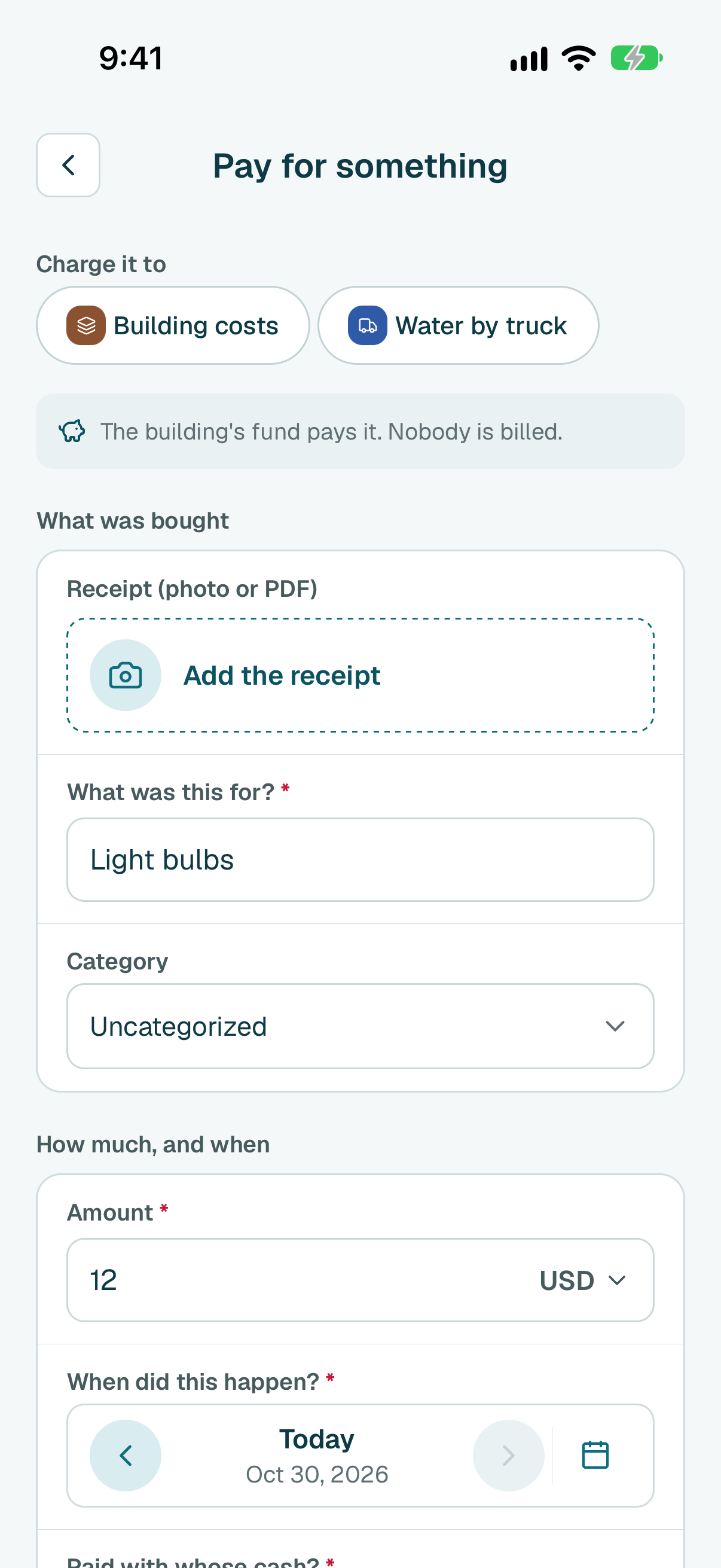
- Tap Add expense.
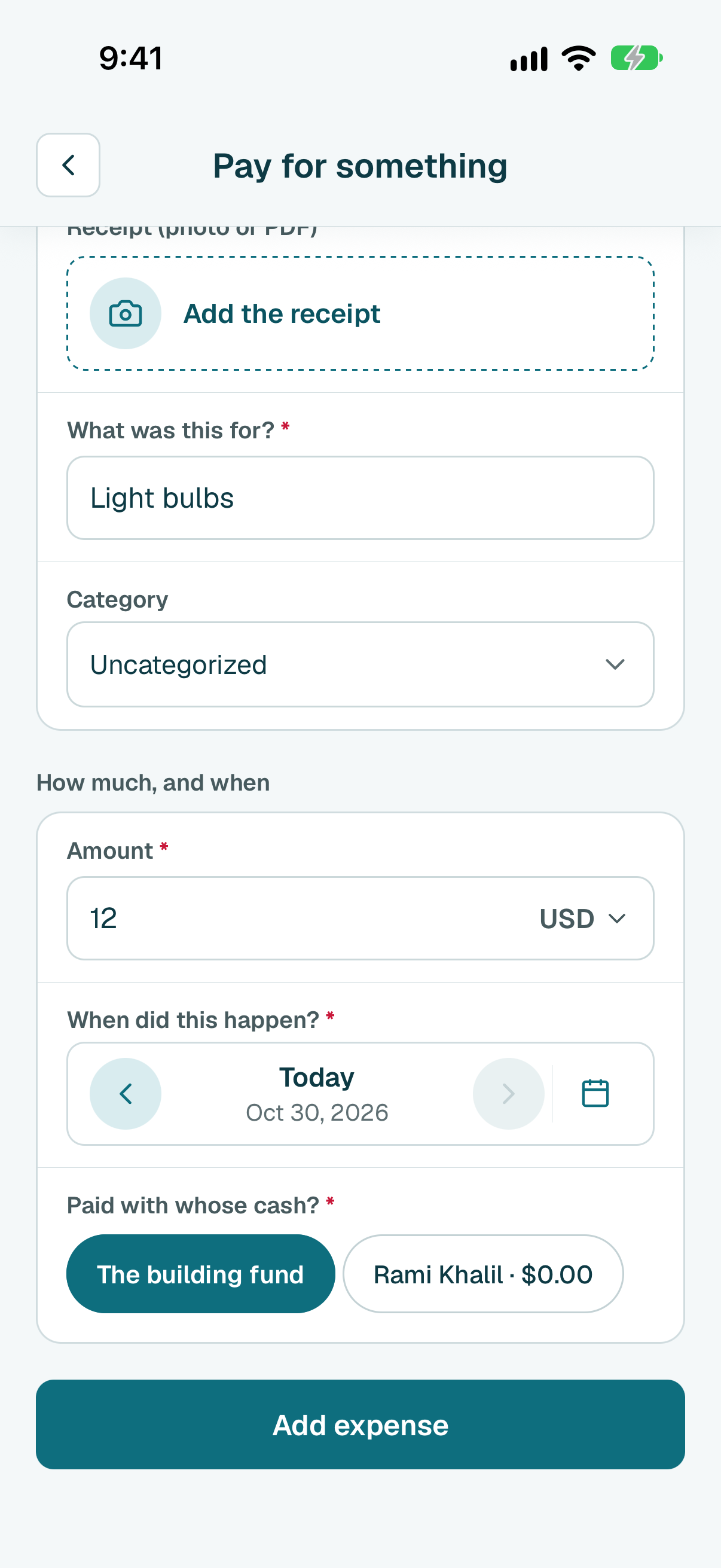
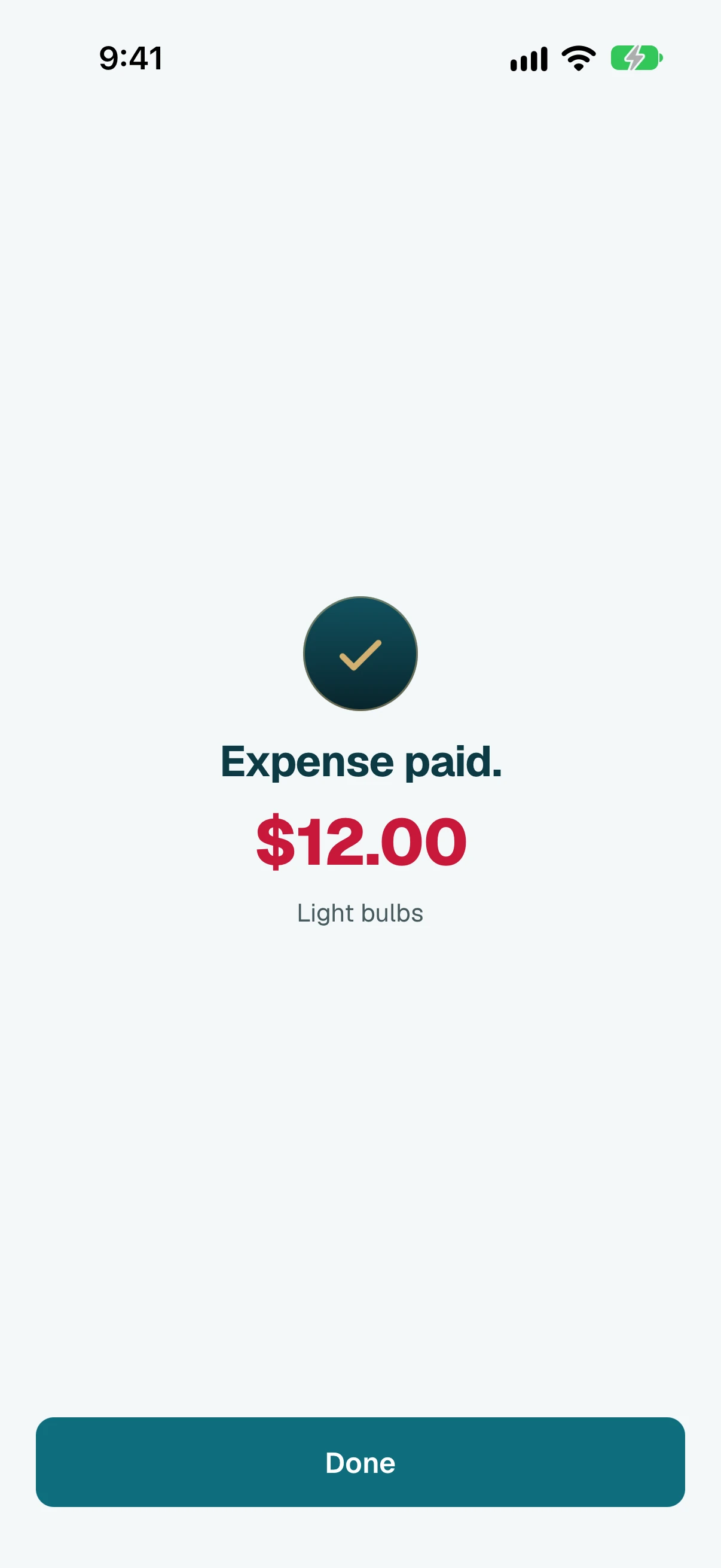
- Done. Tap Done.
Tip
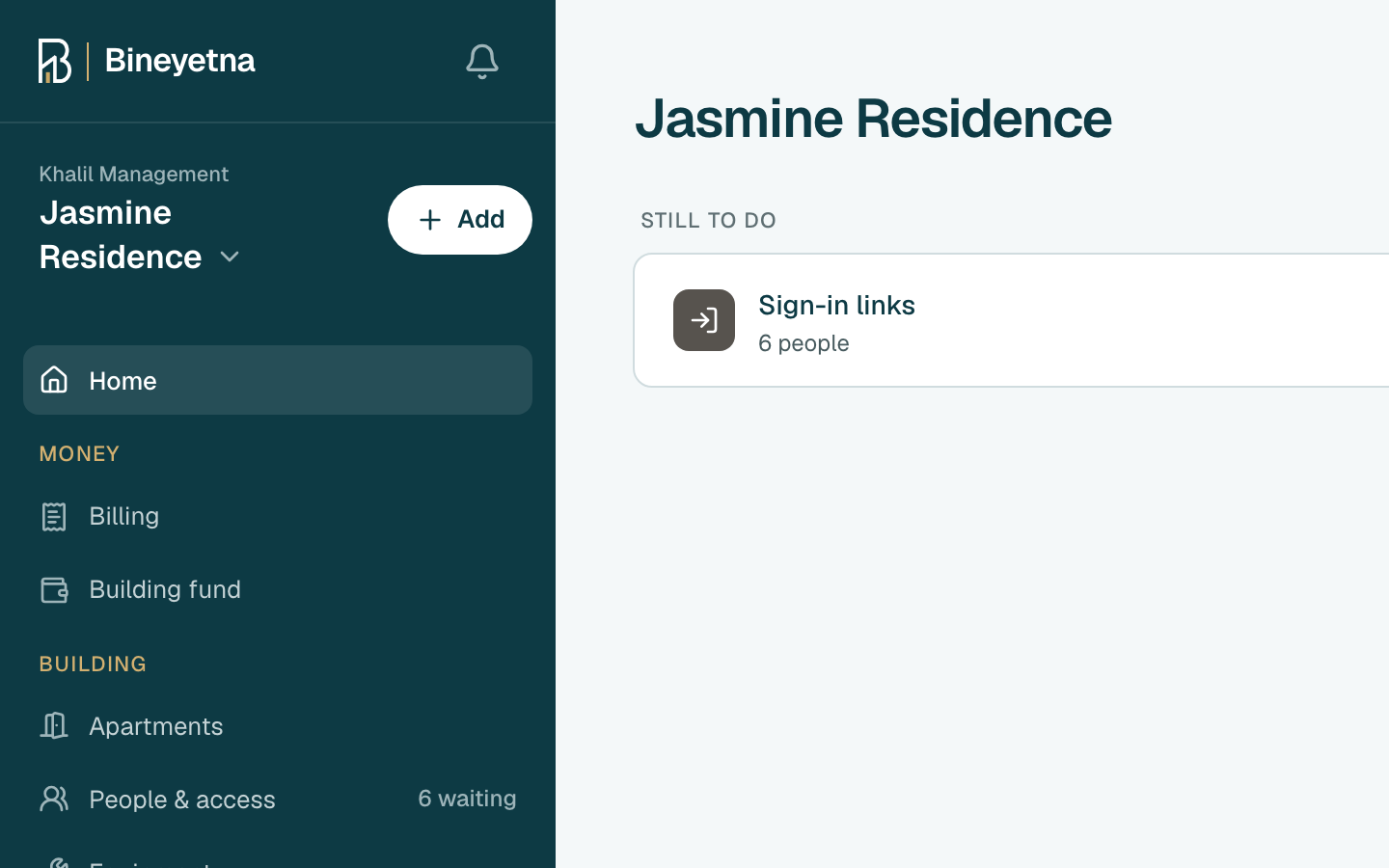
- Click Add, next to your building's name in the side menu.
Click Pay for something.
Tip
For a shared cost, like a water delivery, click its own row under Shared costs instead.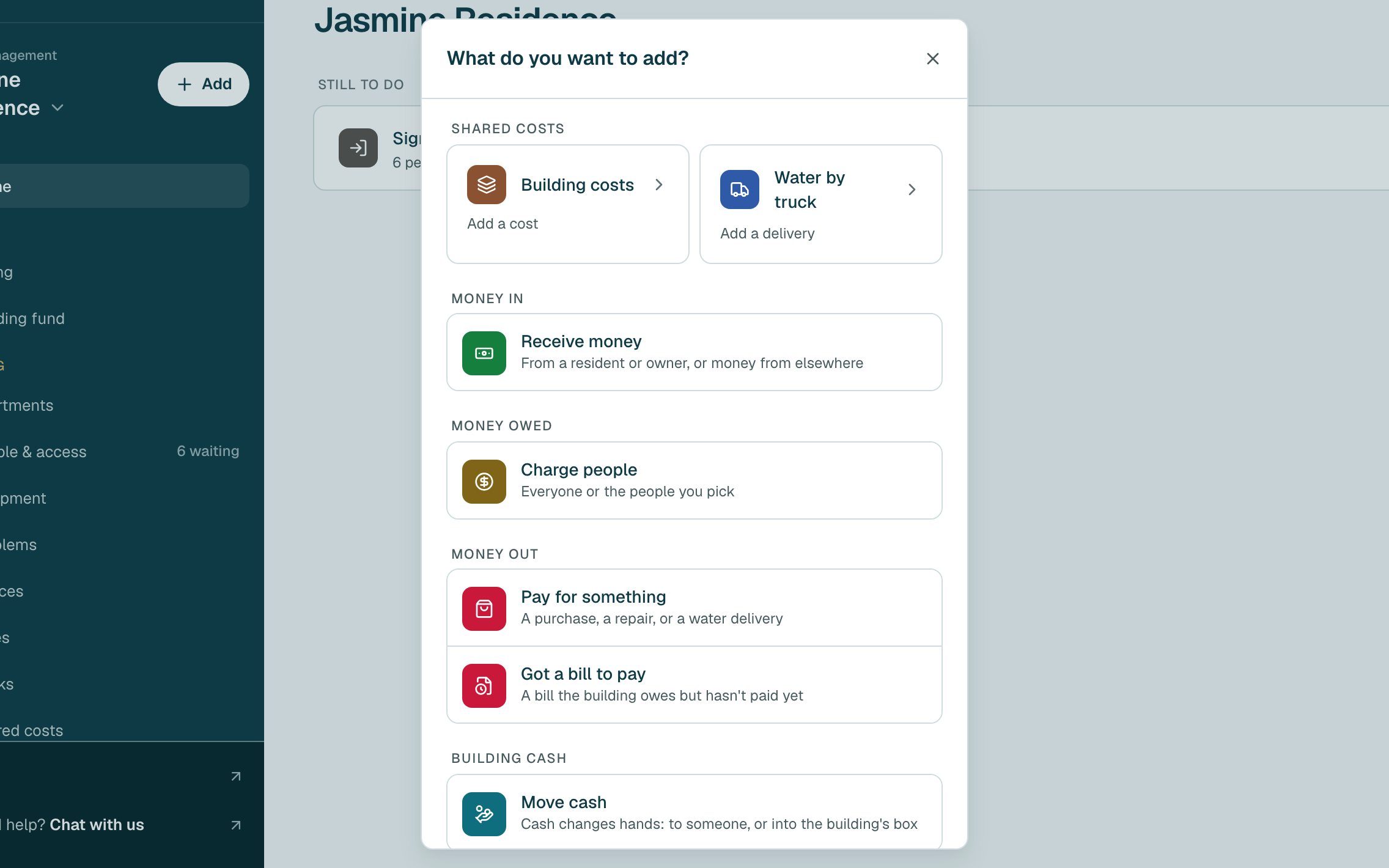
If you see Charge it to, leave it empty when the building's fund pays. Click a shared cost only if the people sharing it should split this cost, and click it again to clear it.
Tip
If you pick the generator or water, the form then asks What did you pay for?. For a repair or a purchase, click A purchase, a repair or a service.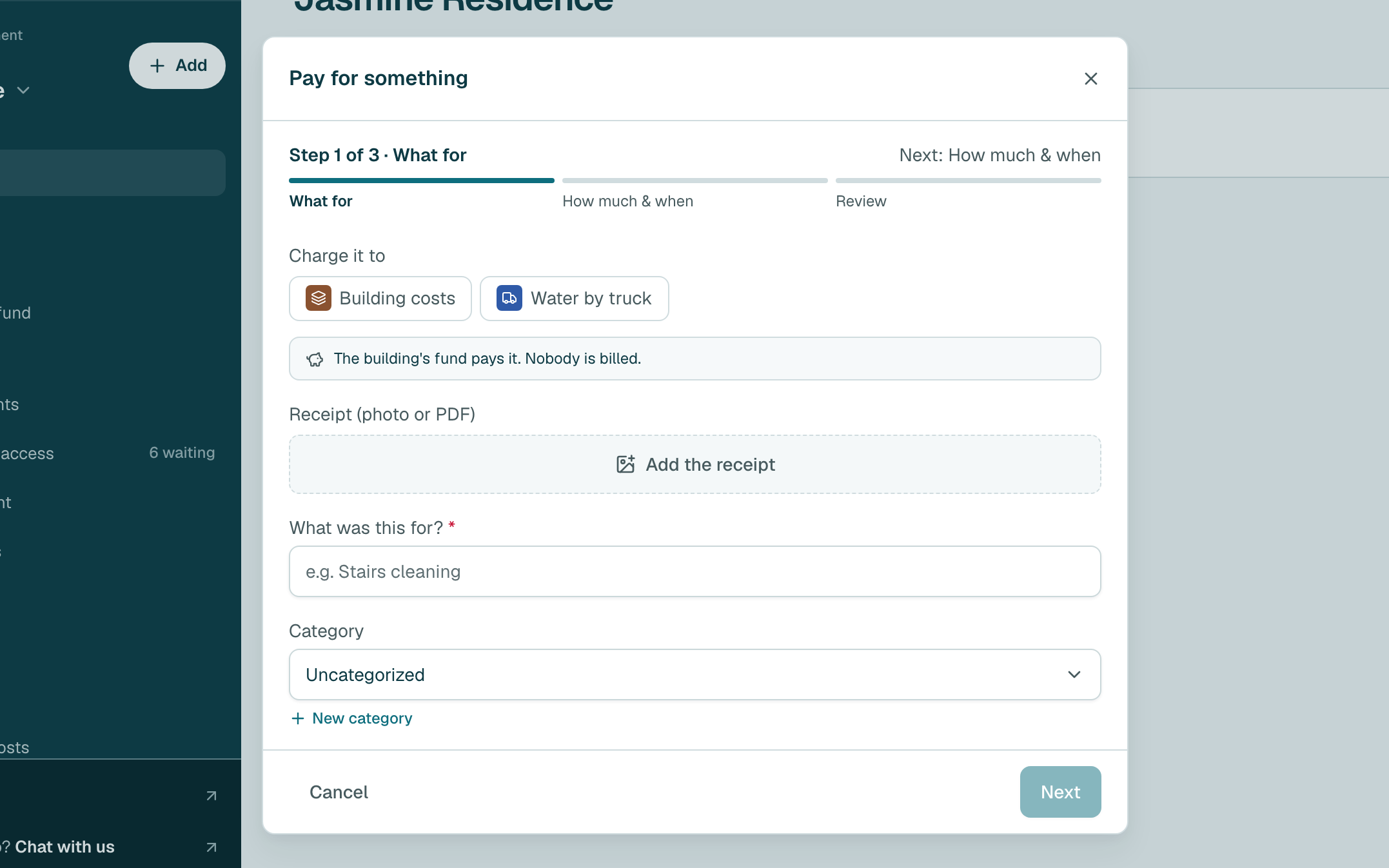
- To keep the receipt, click Add the receipt and choose the photo or PDF. The website may fill in the details from it.
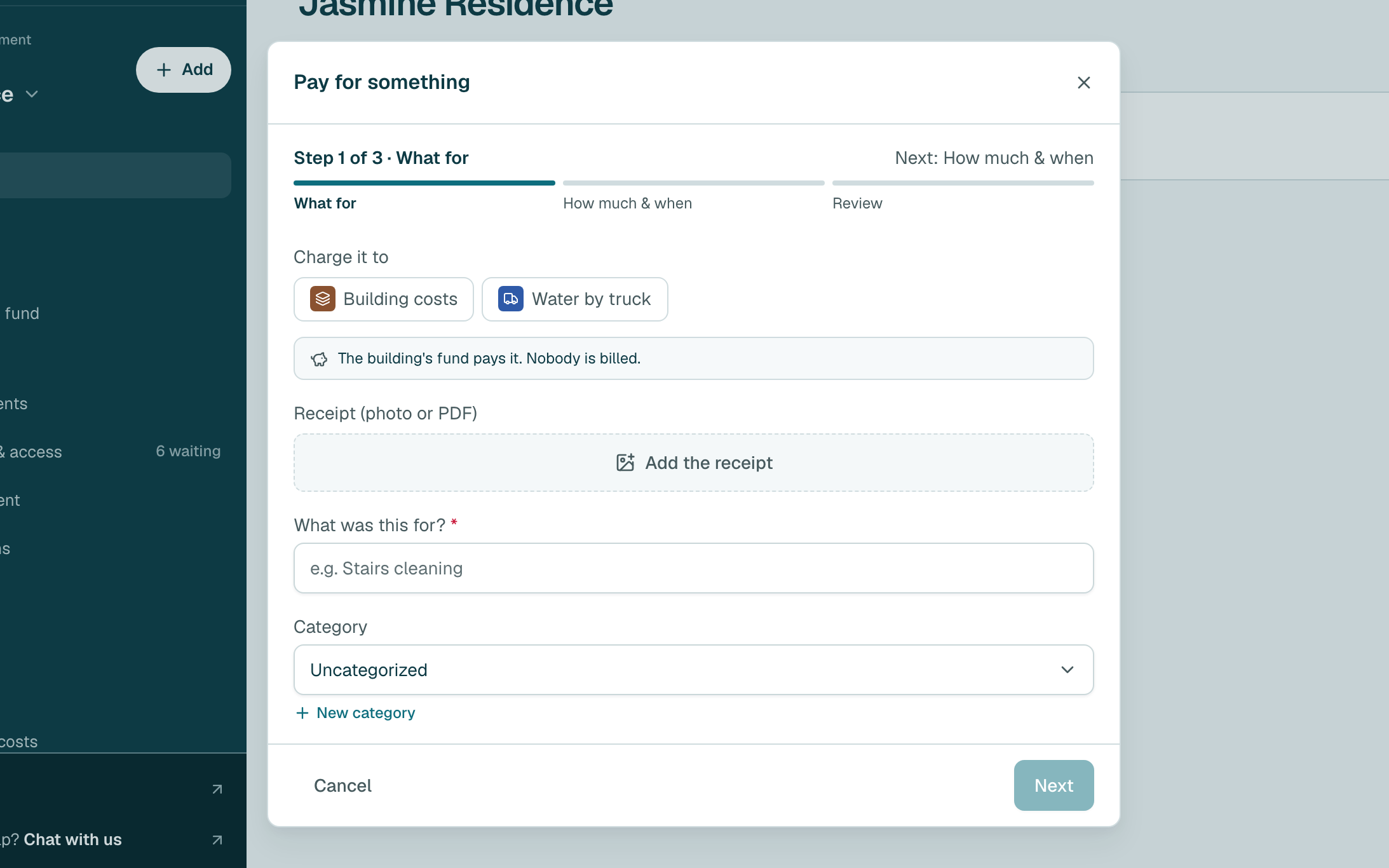
- Type what it was for, then click Next.
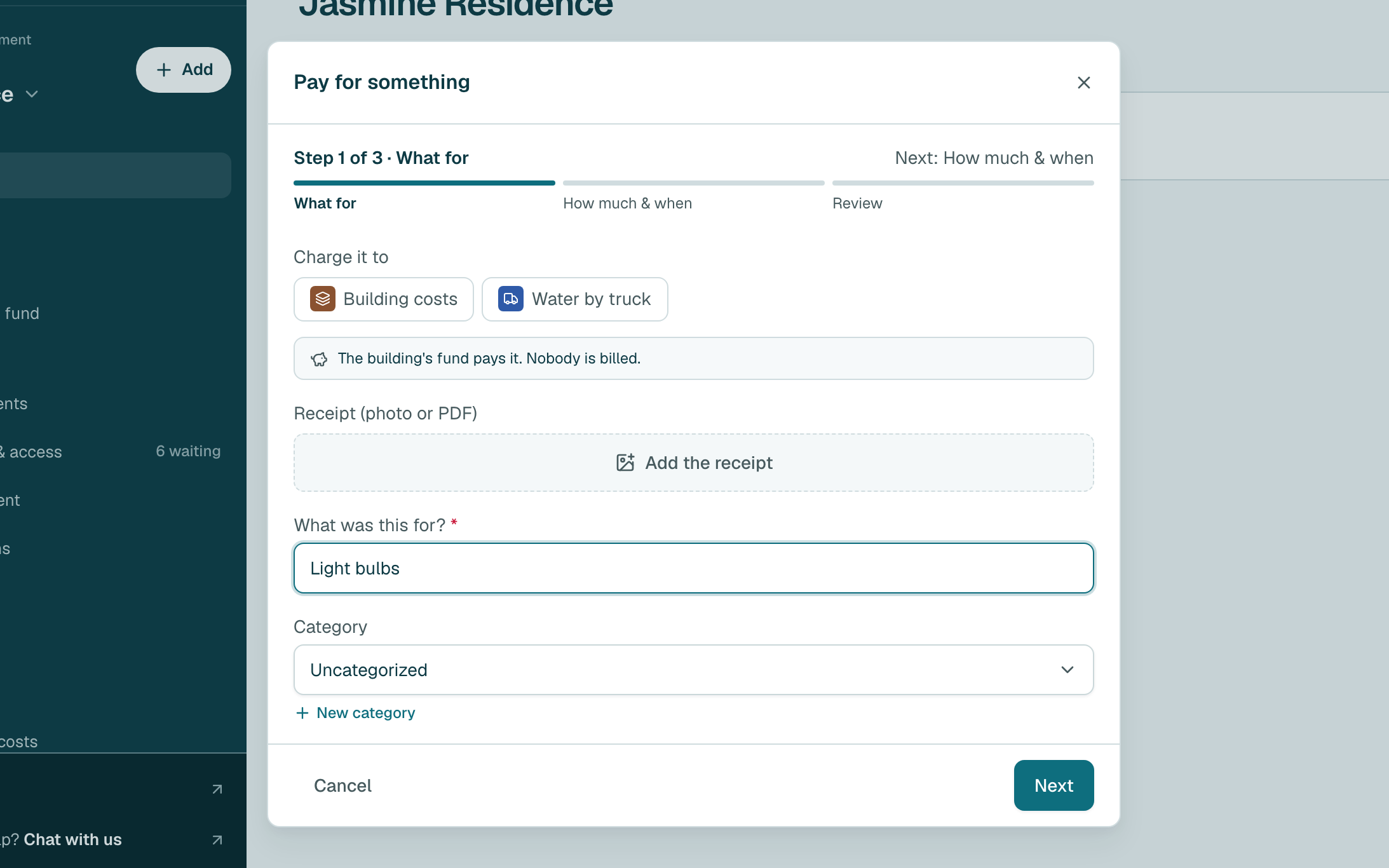
Type how much it cost. The date is already today; change it if it was paid another day. Then click Next.
Tip
If someone paid from cash they hold for the building, find Paid with whose cash? and choose their name. Otherwise leave it on The building fund.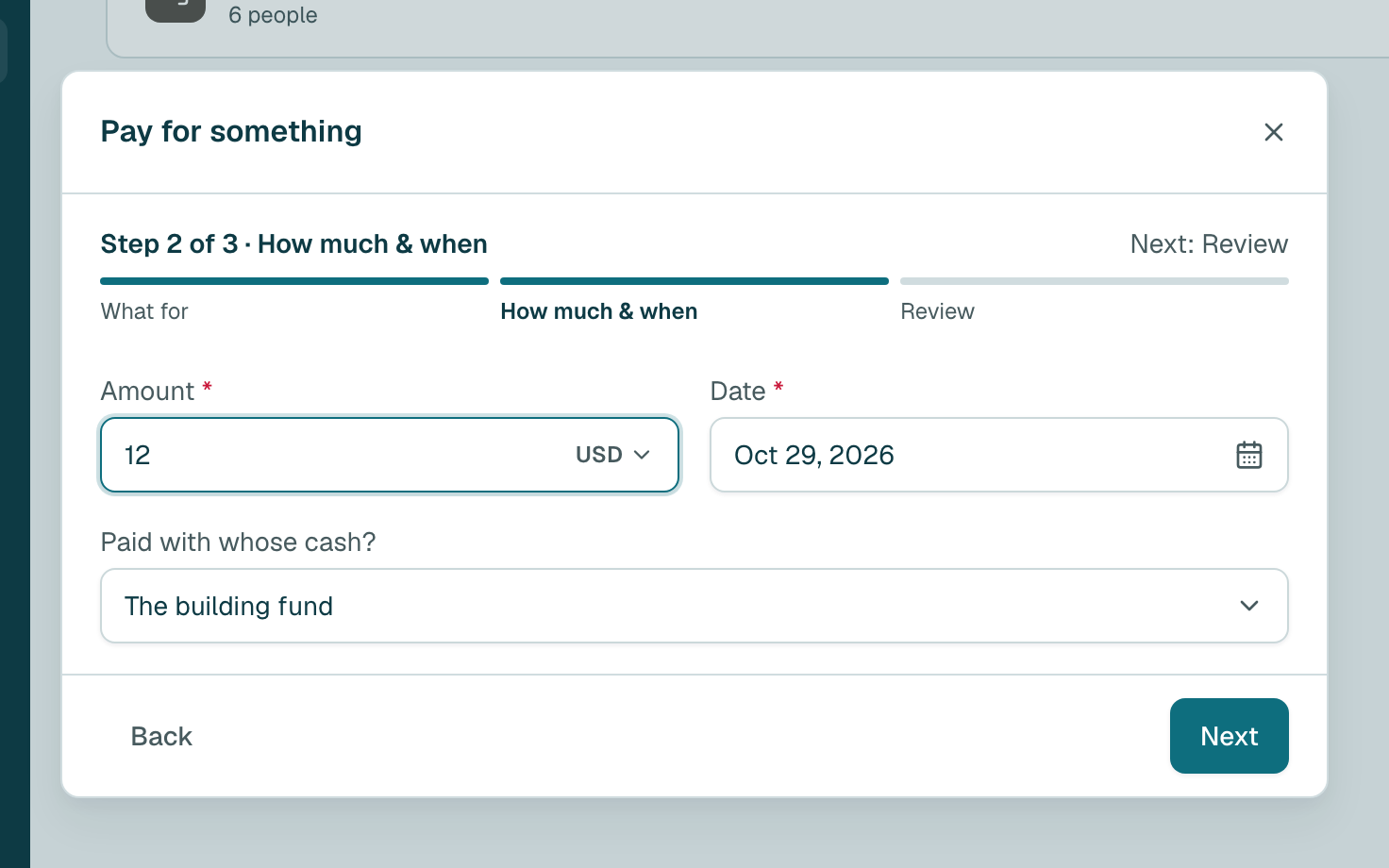
- Check the summary, then click Add expense.
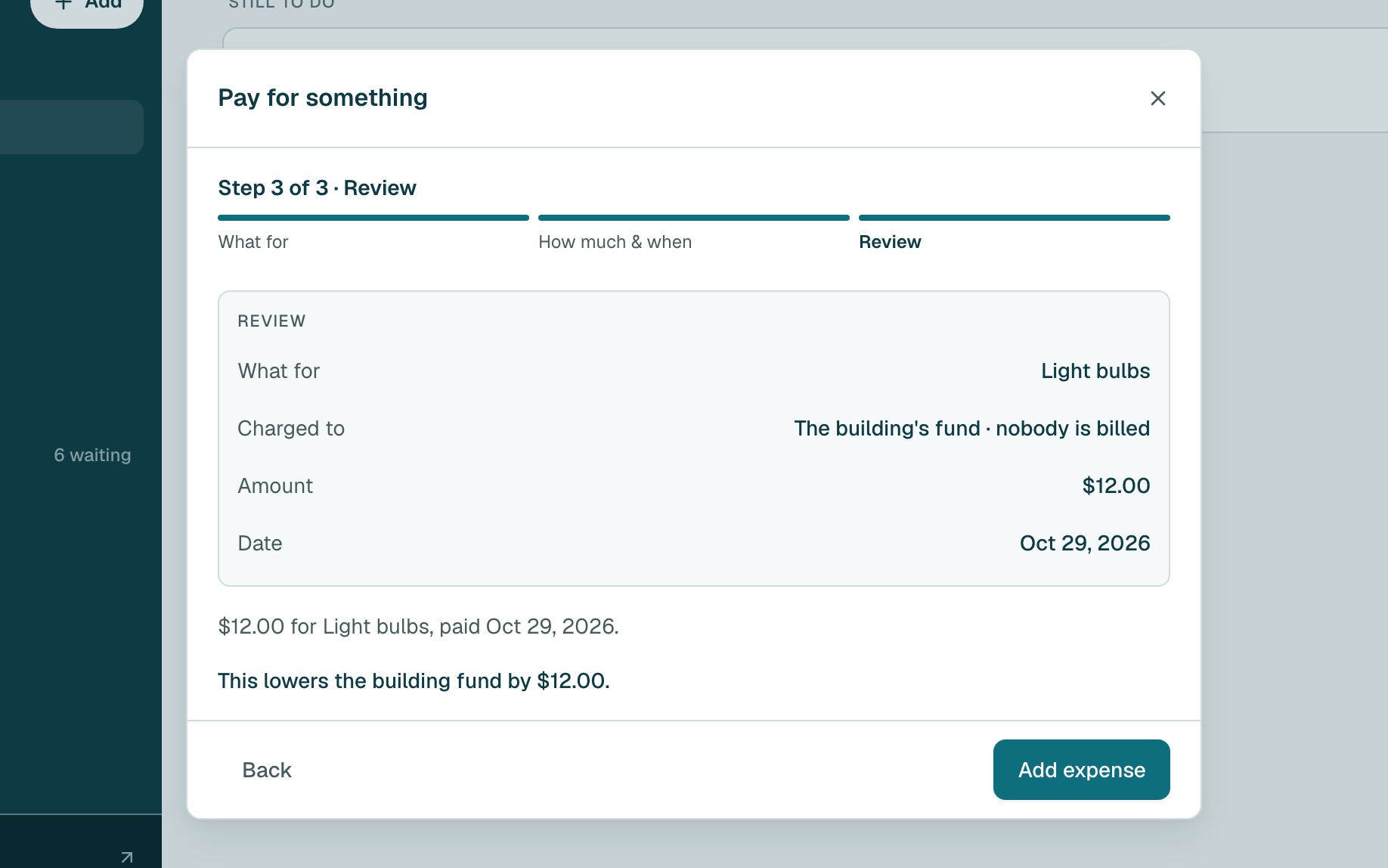
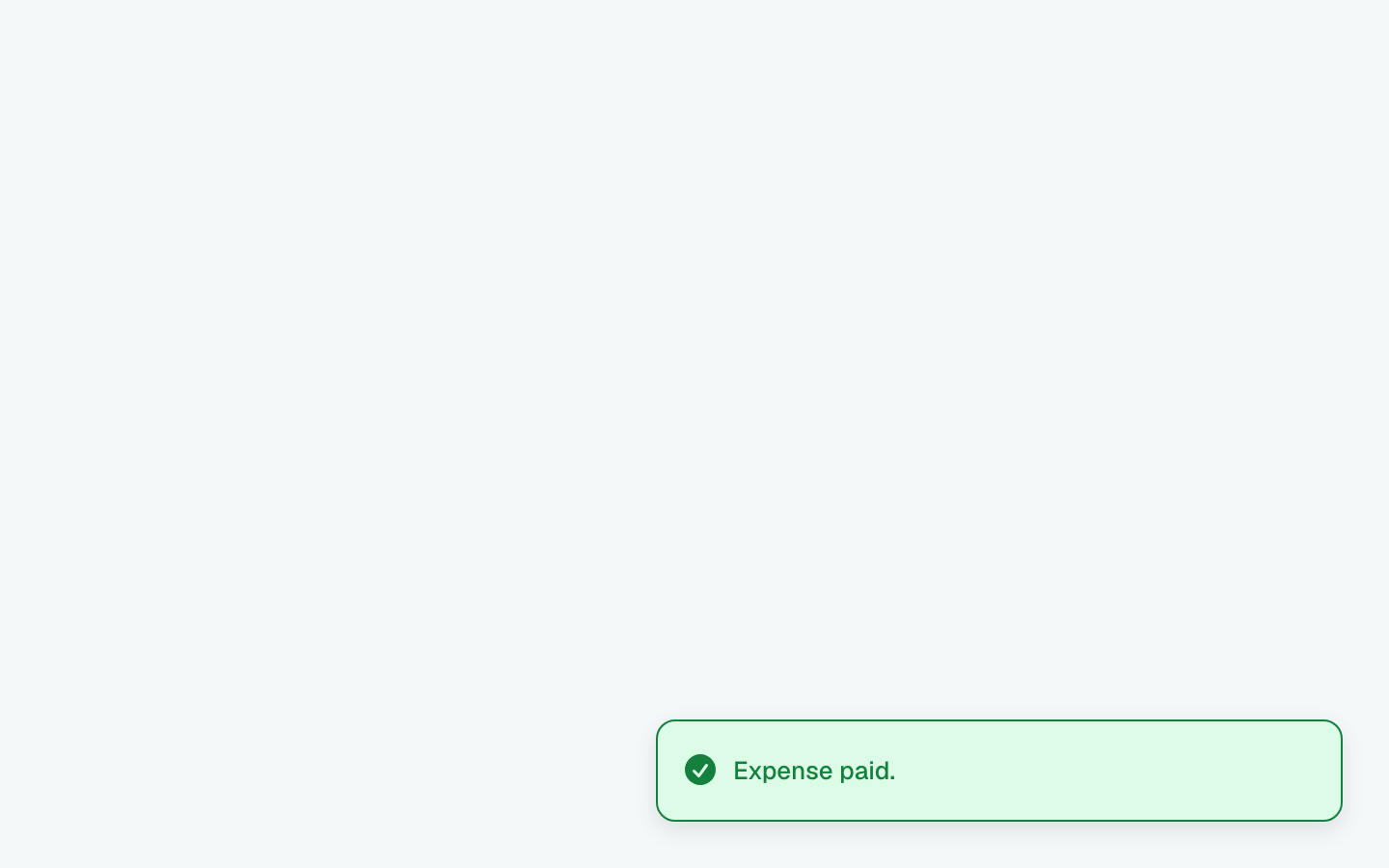
- Done. A message at the bottom of the screen says the expense is paid.
Tip
Still stuck?
Message us on WhatsApp and we will walk you through it.