Send the month's bills
Once a month is over, its charges wait in Billing, ready to send. Look them over and send them. People on the app are told, and you share the bills with the rest.
Where are you doing it?
- Tap Billing at the bottom of the screen.
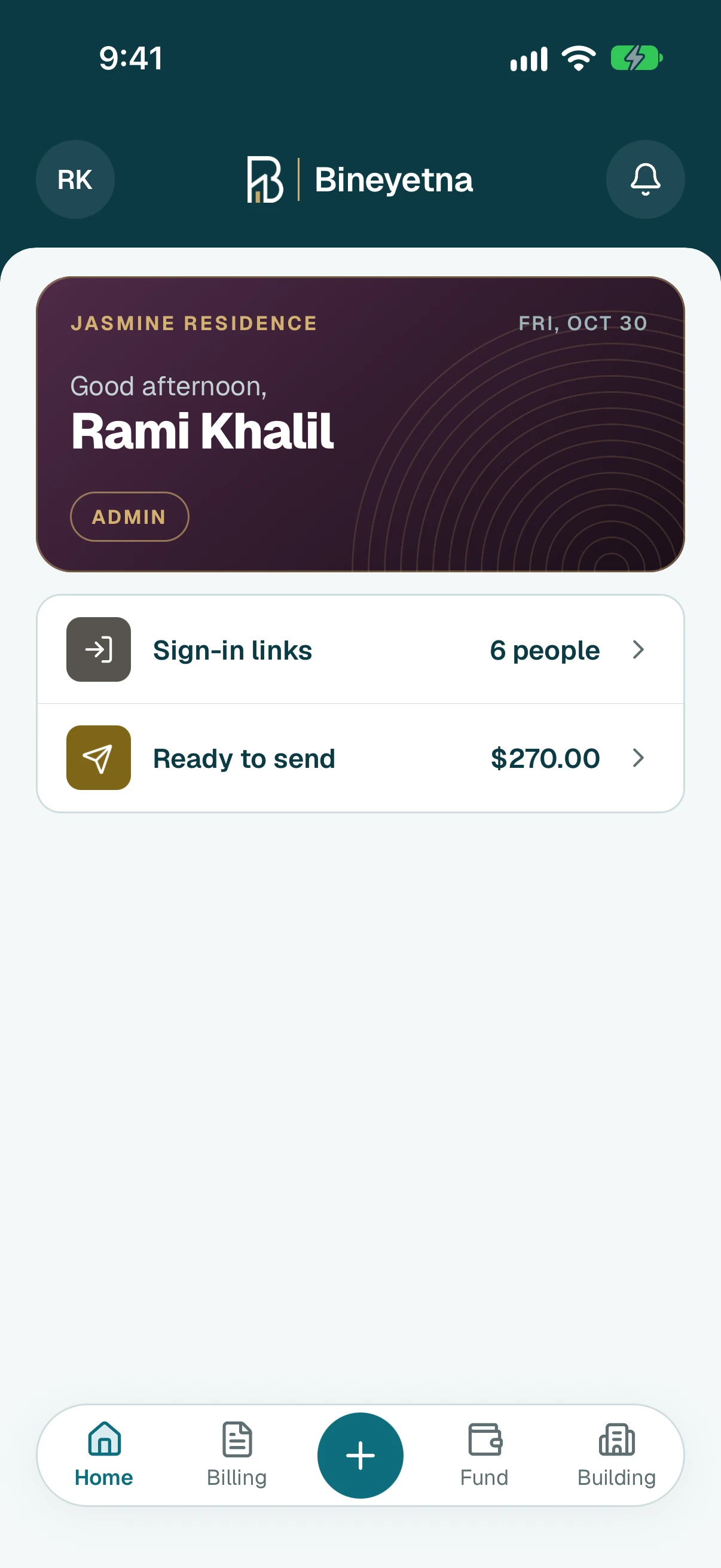
Under Ready to send, check the charges, then tap Review and send below them.
Tip
Tap a charge to see what each person pays, or to change or remove one person's part.
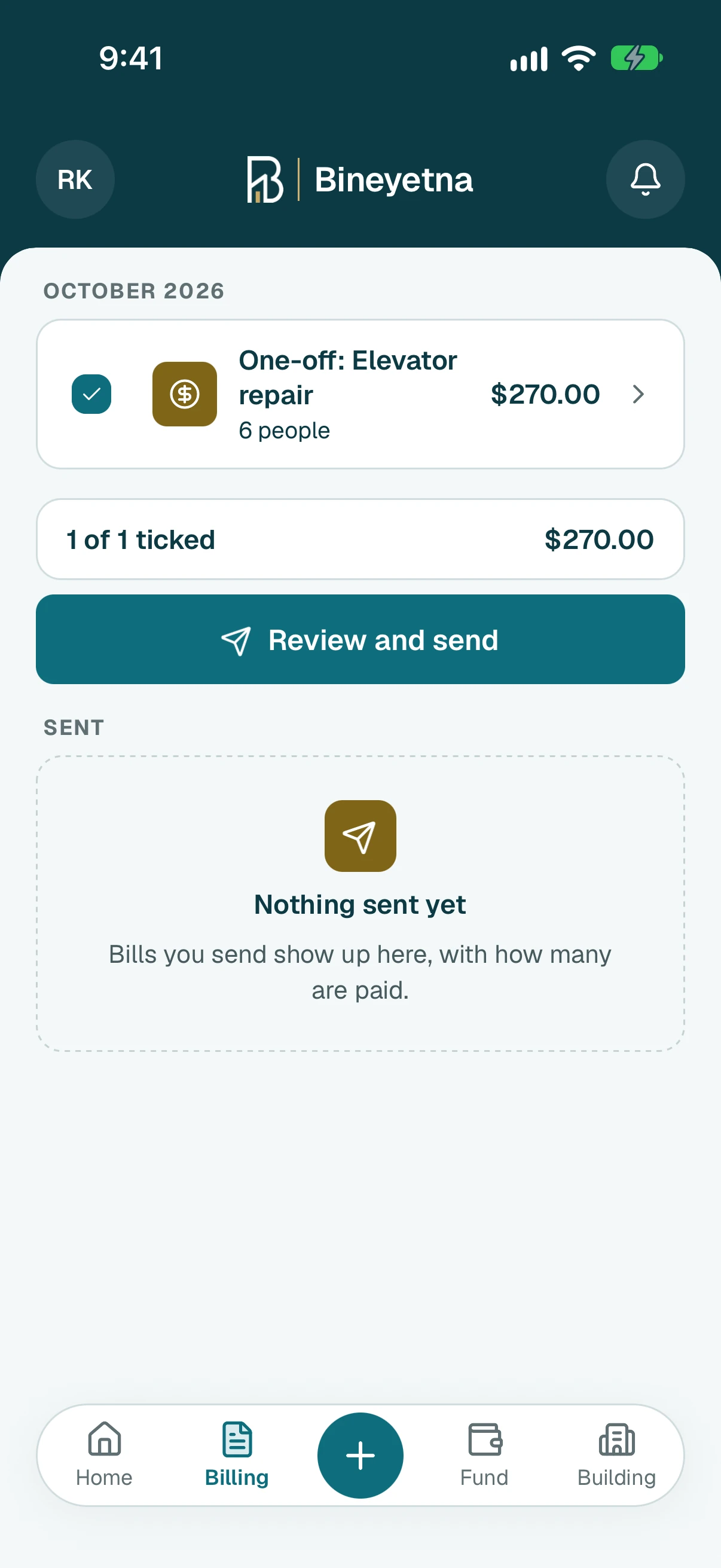
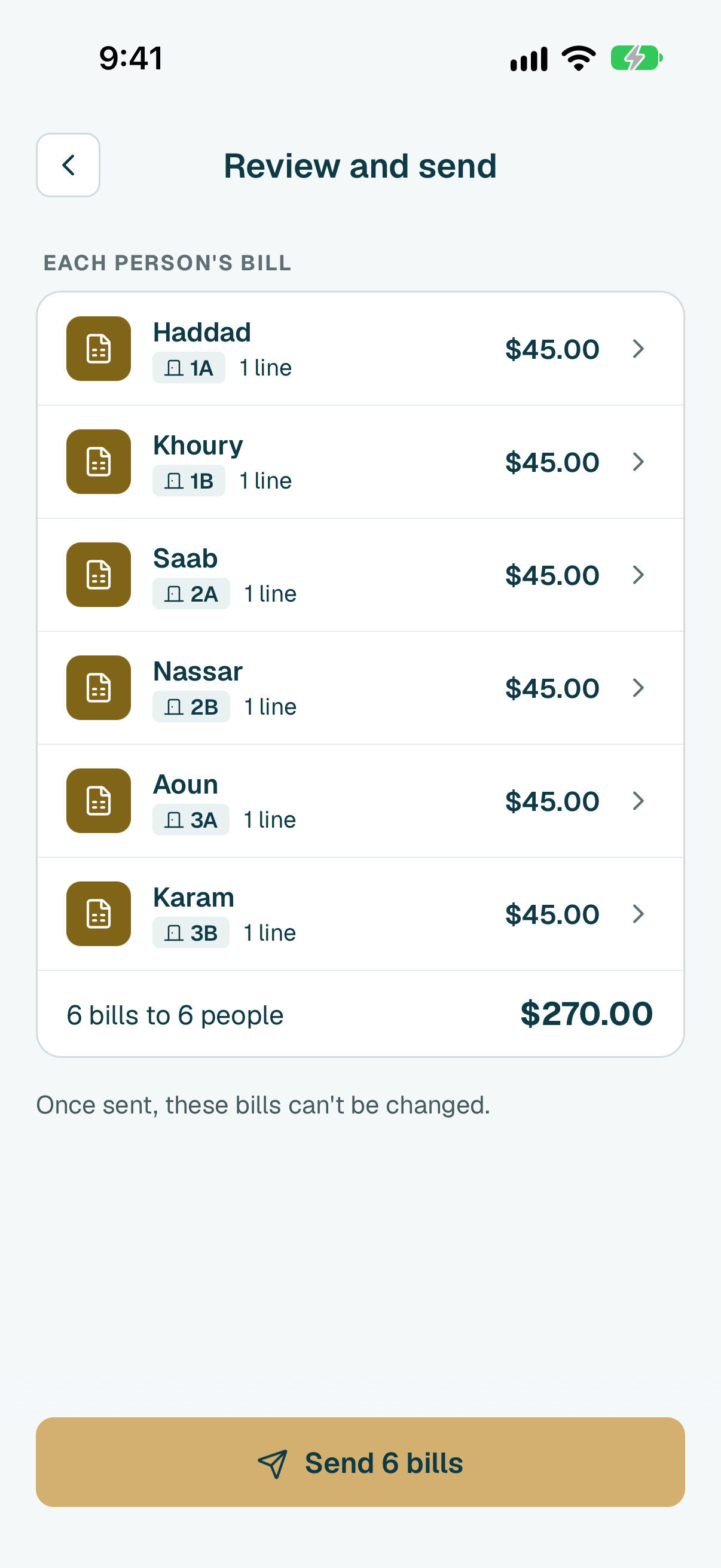
- Check what goes out and each person's bill. To keep a charge for a later send, untick it under What goes out. Tap a name to see what is on their bill. Then tap the send button at the bottom. It shows how many bills go out. Sent bills can't be changed.
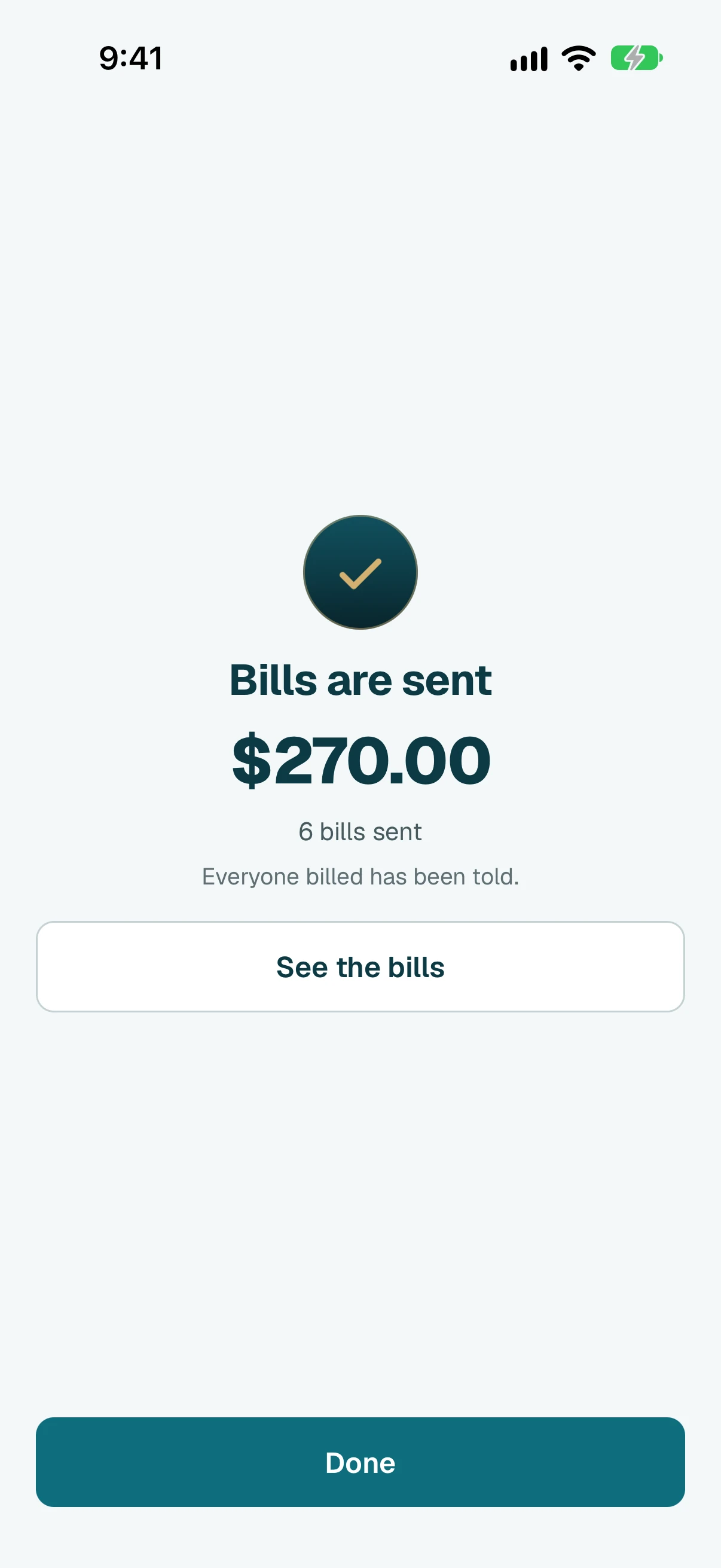
- Done. People on the app are told. Tap Share all bills to share them with the rest.
Tip
Nothing to send? A month's dues are ready once the month is over (or sooner: open one and tap Make it ready to send). A shared cost is ready once you tap Add the bill or Close and split. A line that needs your decision has to be answered first.
- Click Billing in the side menu.
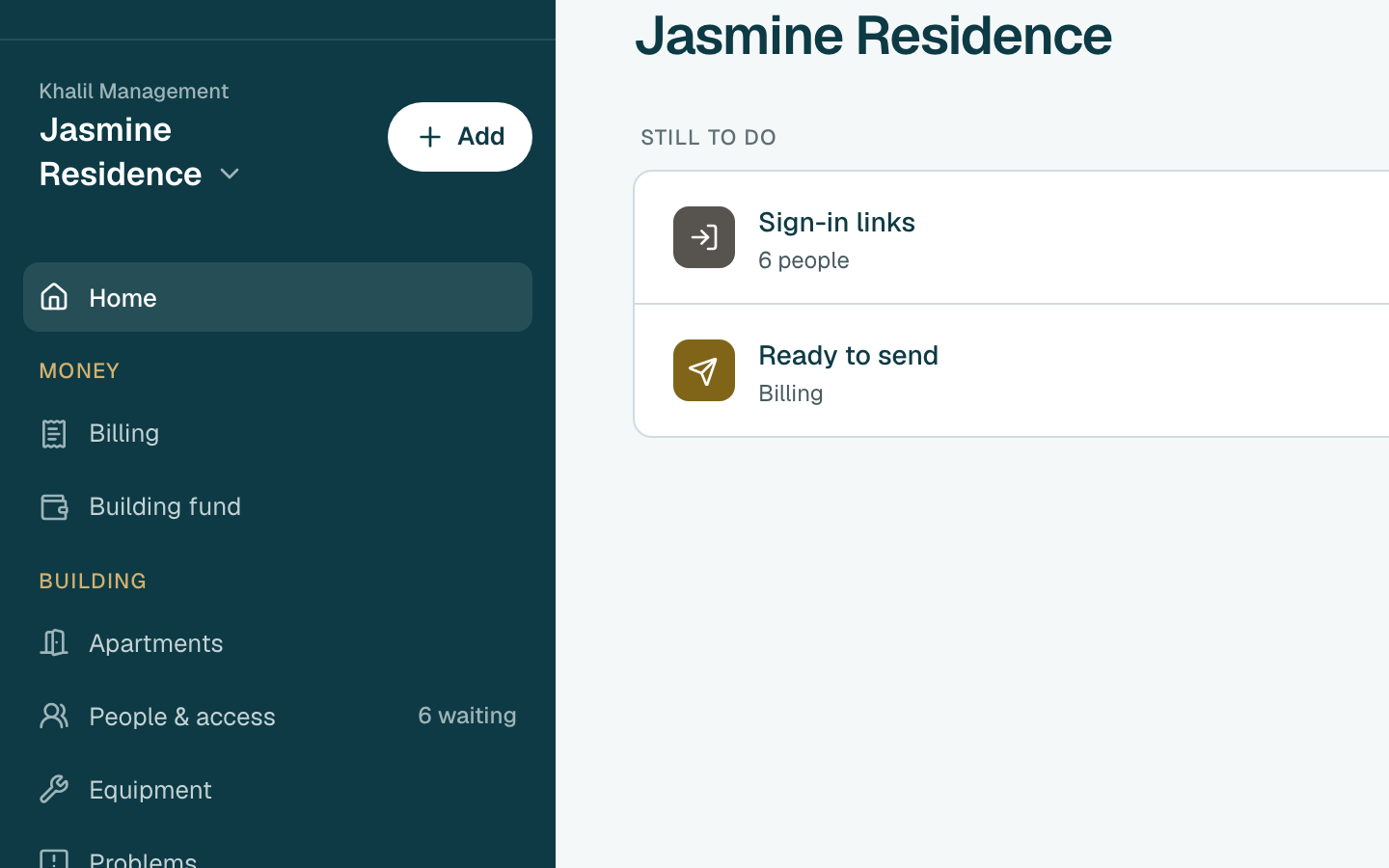
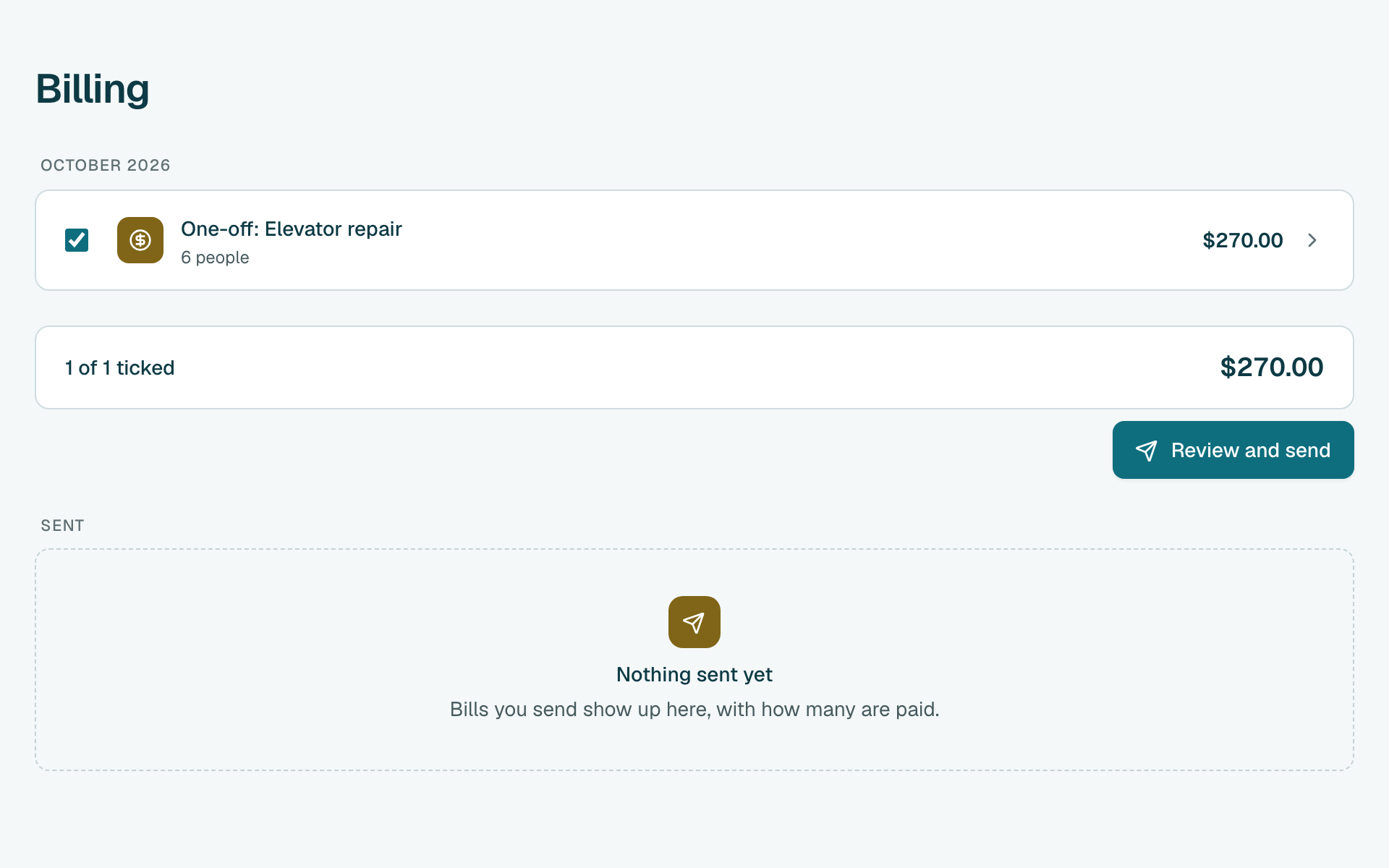
Under Ready to send, check the charges, then click Review and send below them.
Tip
Click a charge to see what each person pays, or to change or remove one person's part.
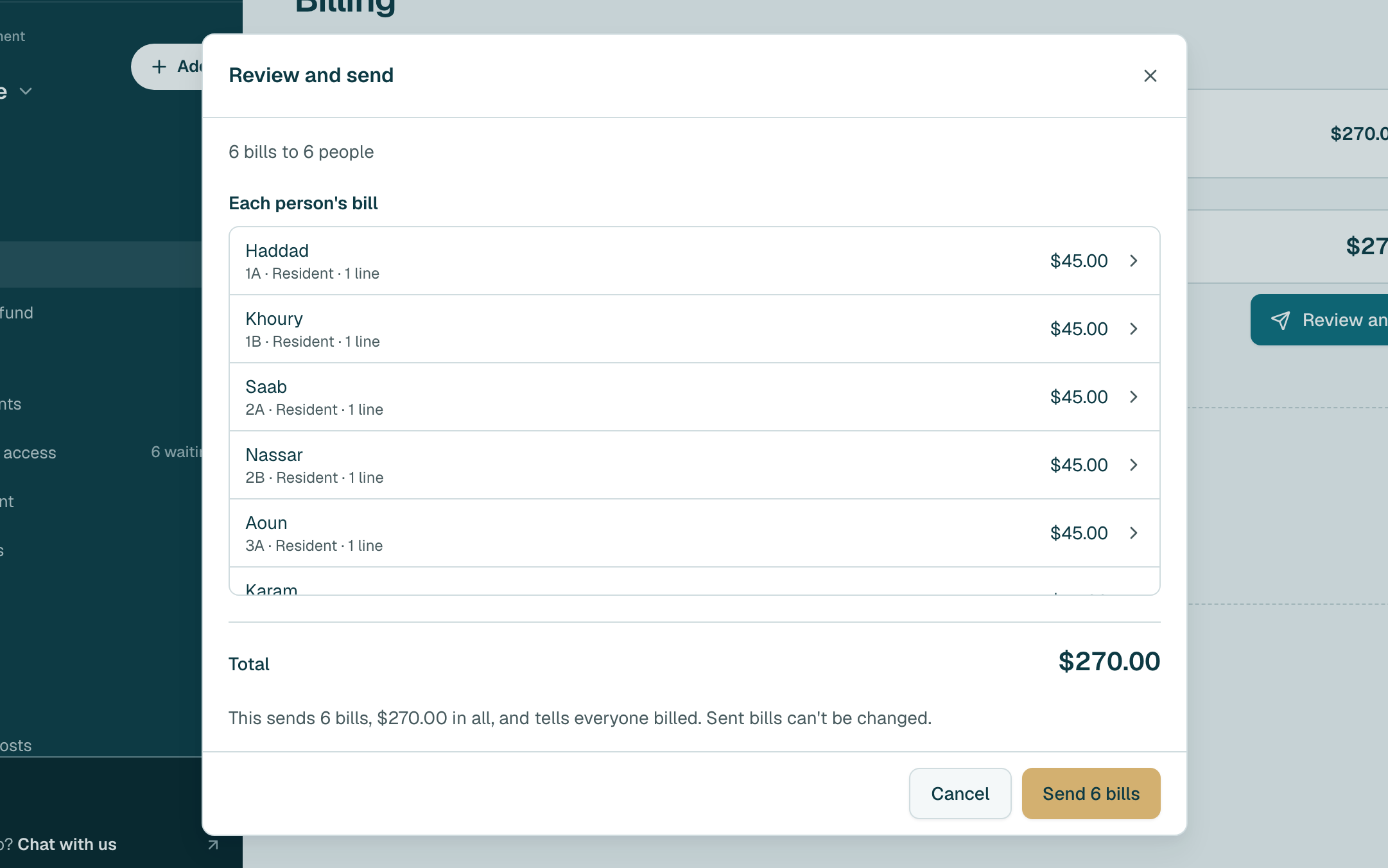
- Check what goes out and each person's bill. To keep a charge for a later send, untick it under What goes out. Click a name to see what is on their bill. Then click the send button. It shows how many bills go out. Sent bills can't be changed.
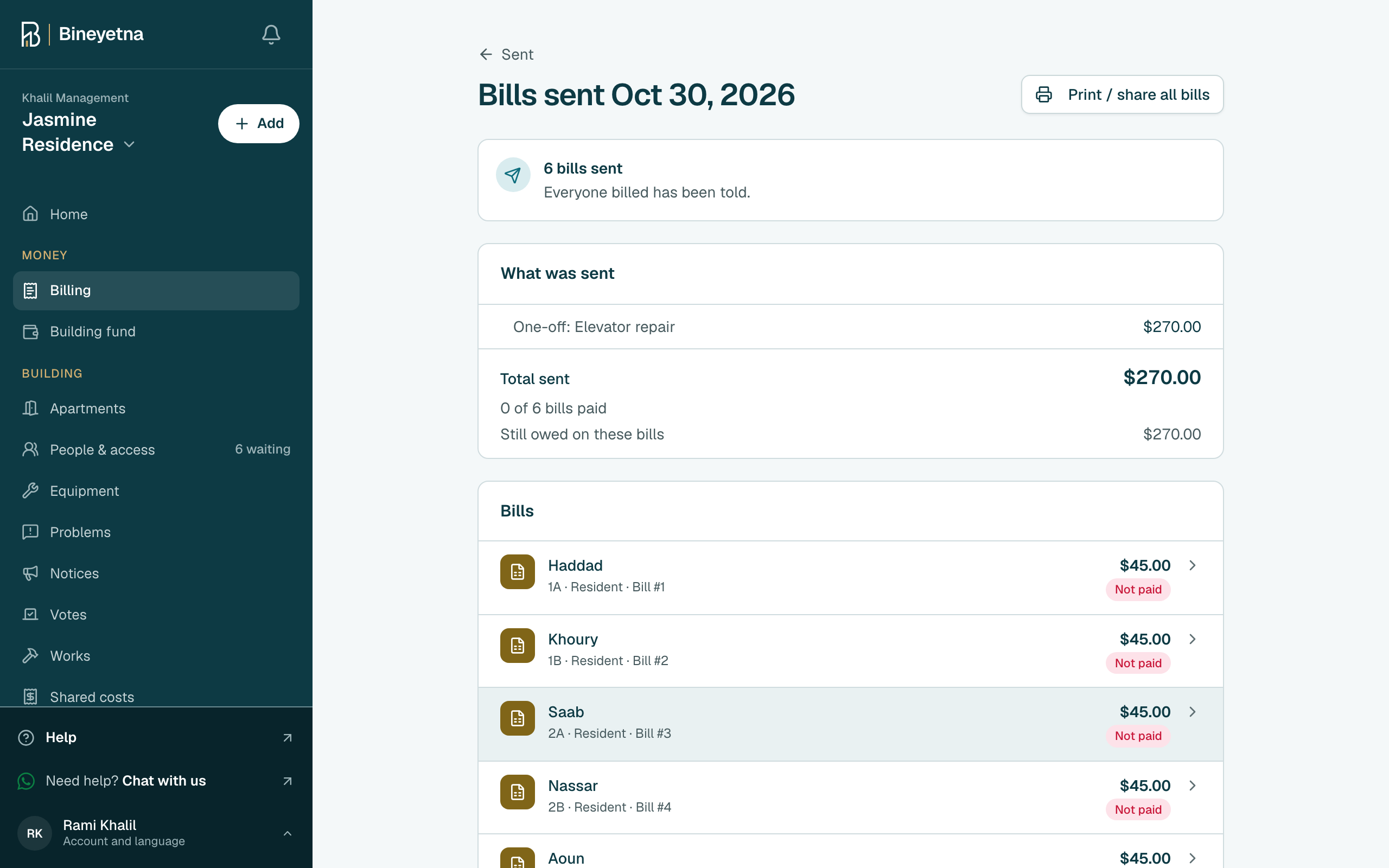
- Done. People on the app are told. Click Print / share all bills to print the bills or share them.
Tip
Nothing to send? A month's dues are ready once the month is over (or sooner: open one and click Make it ready to send). A shared cost is ready once you click Add the bill or Close and split. A line that needs your decision has to be answered first.
Still stuck?
Message us on WhatsApp and we will walk you through it.